Working with Cloud Keys
Overview
Cloud Keys are managed credentials that allow you to launch instances and access cloud resources across AWS, Azure, GCP, Alibaba Cloud, OVH, and OpenStack. RosettaHub automatically provisions keys for your authorized regions as part of the RosettaCloud resource layer.
Prerequisites
- [ ] RosettaHub account
- [ ] At least one cloud account connected
Viewing Your Cloud Keys
Step 1: Open the Keys View
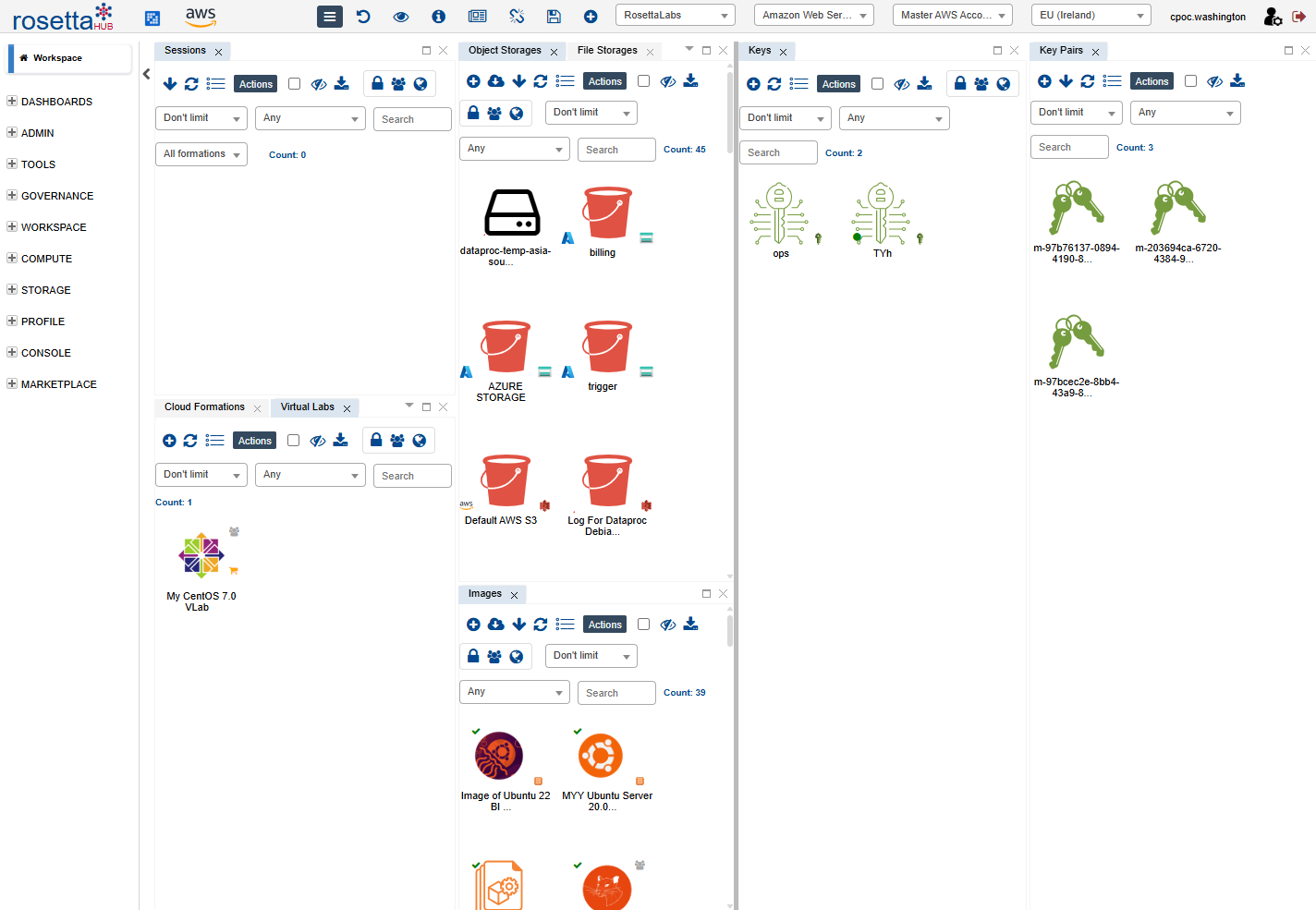
From the hamburger menu, navigate to Compute → Keys to open the Cloud Keys view.
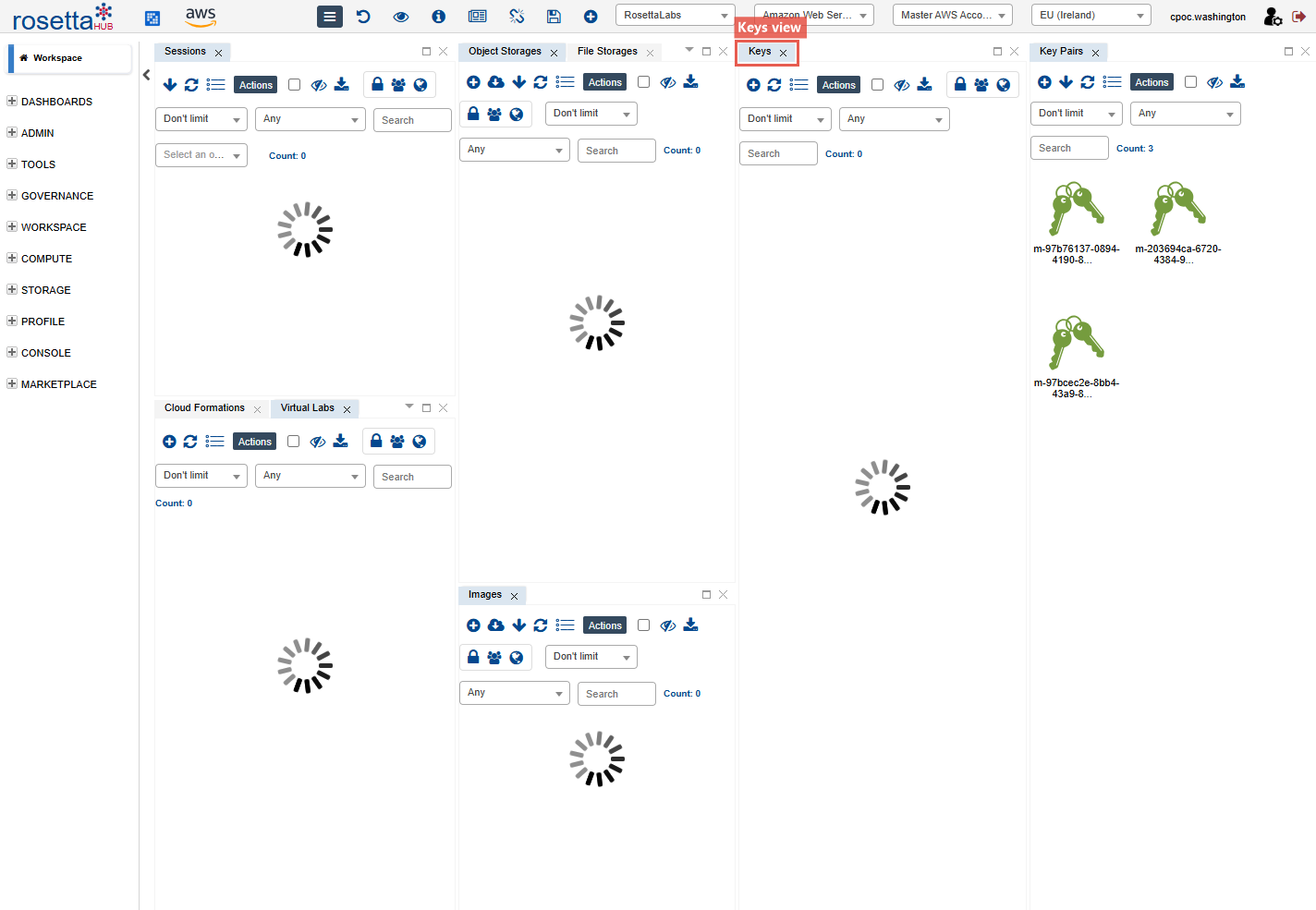
Step 2: Browse Available Keys
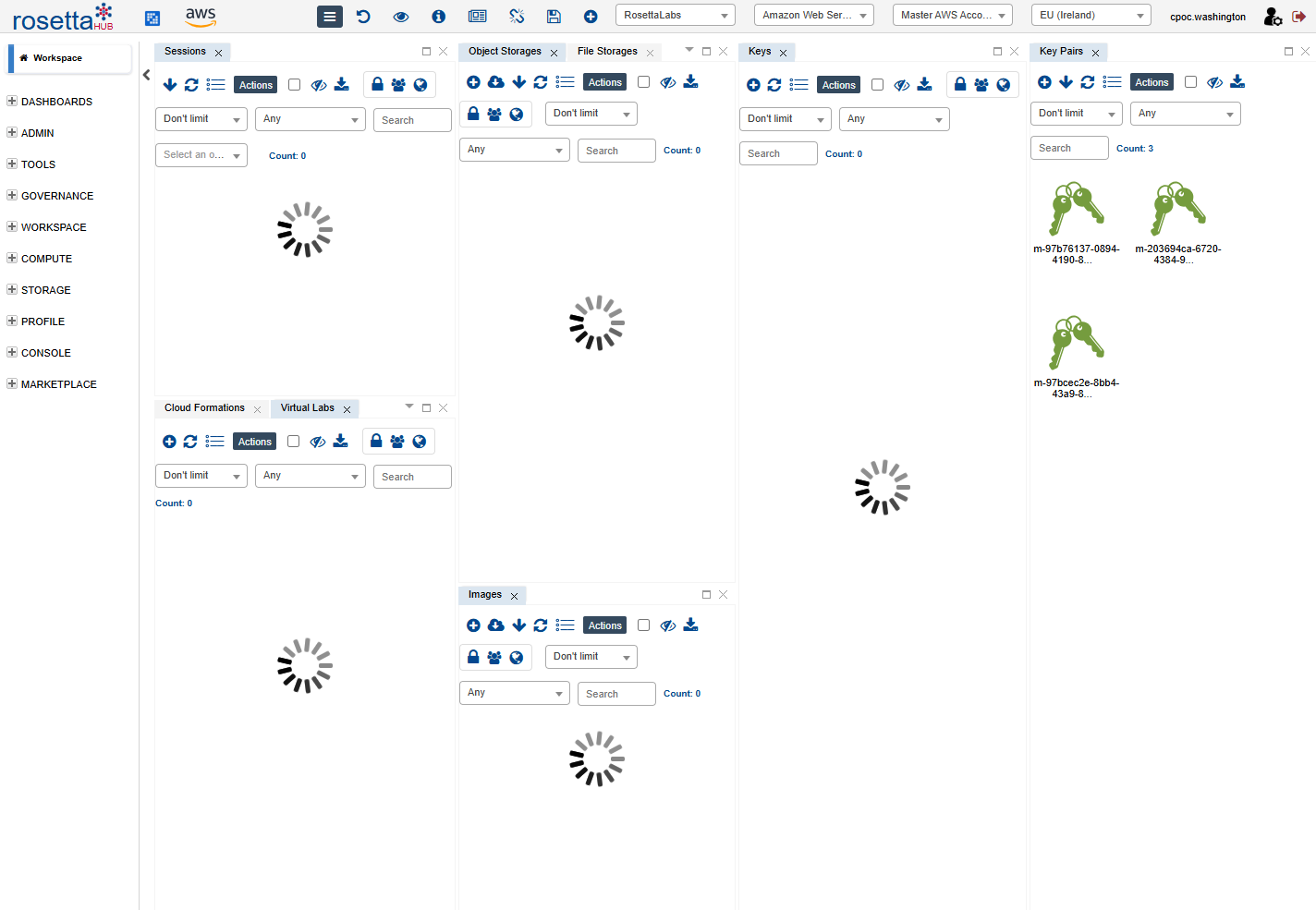
You'll see your Cloud Keys listed with details such as:
- Cloud Provider (AWS, Azure, GCP)
- Region (us-east-1, eu-west-1, etc.)
- Account Number
- Allowed Instance Types
Inspecting a Cloud Key
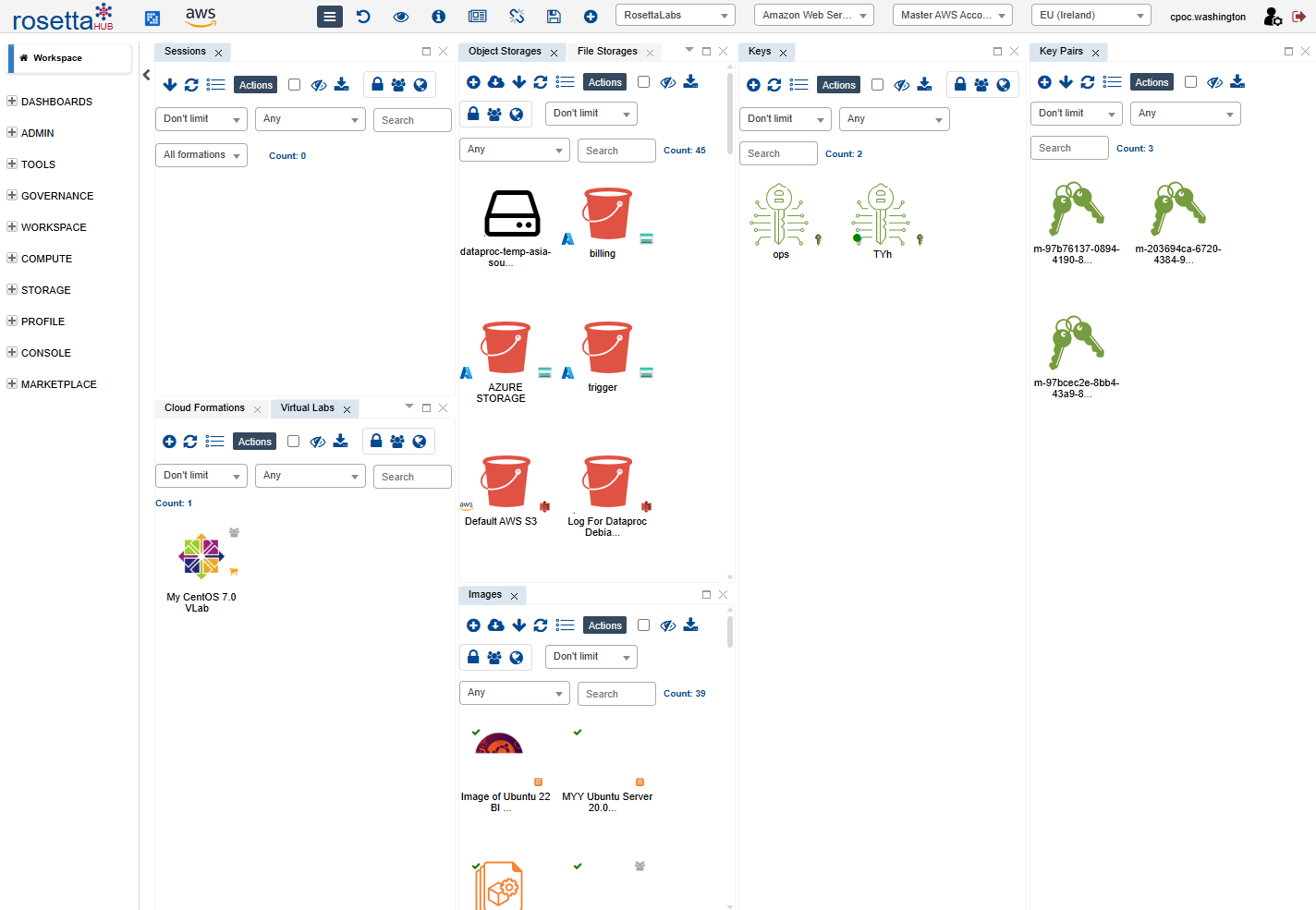
Step 1: Right-click → Show Info
Right-click on a Cloud Key and select Show Info to view its full details — including the VPC, capacity limits, and owner.
Context Menu Actions
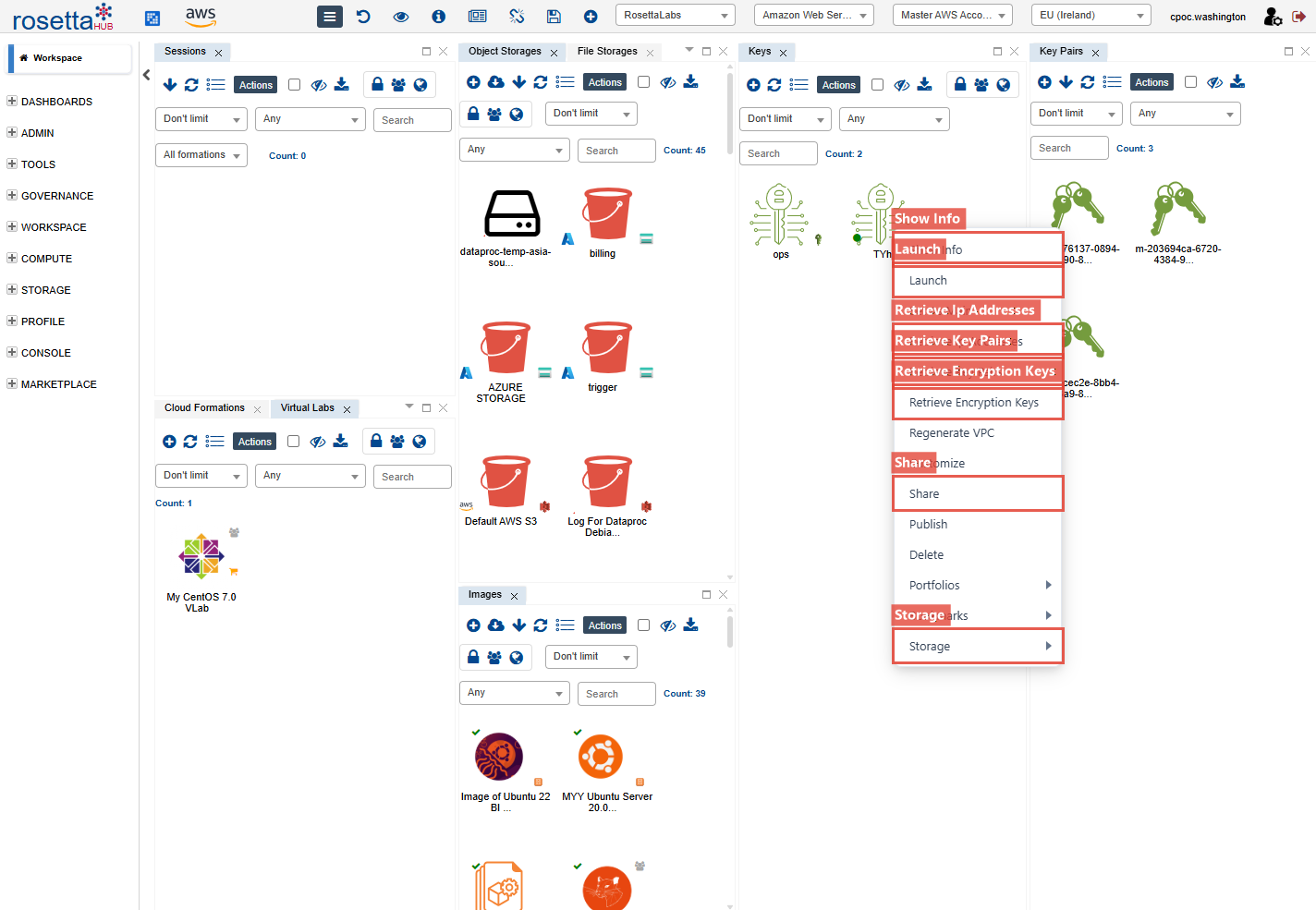
Right-click a Cloud Key to see all available actions:
- Show Info — view key details
- Launch — start a machine session with this key
- Retrieve Object Storages — import S3 buckets, Azure Blob containers, or GCS buckets
- Retrieve File Storages — import network file systems (EFS, Azure Files, etc.)
- Retrieve Block Storages — import disk volumes
- Retrieve Block Snapshots — import volume snapshots
- Retrieve Ip Addresses — import elastic/static IPs
- Retrieve Key Pairs — import SSH key pairs for this region
- Retrieve Encryption Keys — import KMS keys
- Share — share the key with users, groups, or organizations
Launching with a Cloud Key
Step 1: Select Launch
Right-click a key and select Launch, or double-click the key.
Step 2: Configure and Deploy
- Select a formation or image
- Choose instance type (from allowed list)
- Click Launch
Best Practices
Organization
- Use descriptive labels (e.g., "Production-US-East")
- Document which formations use which keys
- Review and clean up unused keys periodically
Permissions
- Request only the regions you need
- Use appropriate instance types for your workload
- Contact your admin if you need additional permissions
Next Steps
- Key Pairs - Create SSH keys for connecting to instances
- Cloud Keys User Guide - Complete documentation
- Launch a Formation - Use keys to deploy cloud-agnostic IaC recipes
- Cloud Accounts - Account vending and governance