Working with Perspectives
Overview
Perspectives save your entire dashboard layout, which views are open, how they are arranged, and what filters are applied. This tutorial covers creating custom perspectives, managing views within them, and sharing perspectives with your organization.
For a tour of the built-in perspectives, see Getting Started.
Prerequisites
- [ ] RosettaHub account
- [ ] Completed the Getting Started tutorial
Understanding the Workspace
Workspace vs. Perspective Tabs
The left pane has two modes:
| Mode | Behavior |
|---|---|
| Workspace (first tab) | Your personal default layout. Any changes you make here are automatically saved. |
| Perspective tabs (below Workspace) | Read-only previews organized by category. Clicking a perspective tab shows its layout, but changes are not saved to your default. |
Info
To adopt a perspective as your default layout, select it from the perspective dropdown in the toolbar, not from the left pane.
What a Perspective Captures
A perspective stores:
- View arrangement, which views are open and where they are positioned
- View sizes: how space is divided between views
- Tab groups, which views are grouped into tabbed containers
- Active tabs, which tab is selected in each group
- Filters: search, visibility, and limit settings per view
- Global filters: cloud, account, and region filters from the toolbar
Adding Views to Your Layout
Use the hamburger menu (☰) in the toolbar to add views:
- Click the ☰ menu in the toolbar
- Browse views organized by category (Formations, Compute, Storage, Admin, etc.)
- Click a view to add it to your current layout as a new tab
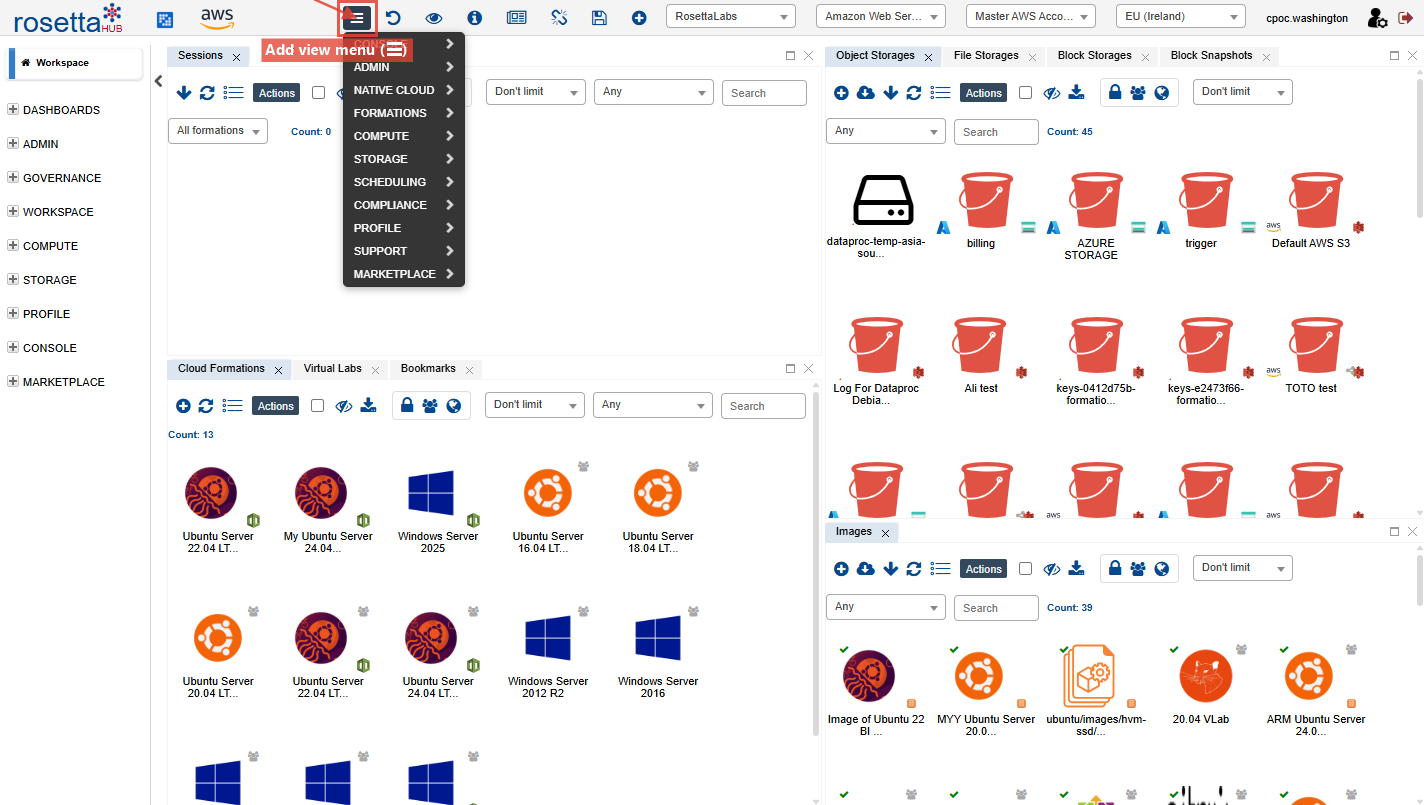
The menu only shows views available to you: views you own, views shared with you, or views included in shared perspectives.
Info
Not everyone sees the same views. When a perspective is shared, all views inside it are automatically shared with the recipients. Contact your organization administrator if a view you need is not available.
Working with View Controls
Each view has built-in controls for interacting with its content.
Filtering
Type in the filter bar at the top of any view and press Enter to search. The filter searches across all visible properties: labels, descriptions, types, and more.
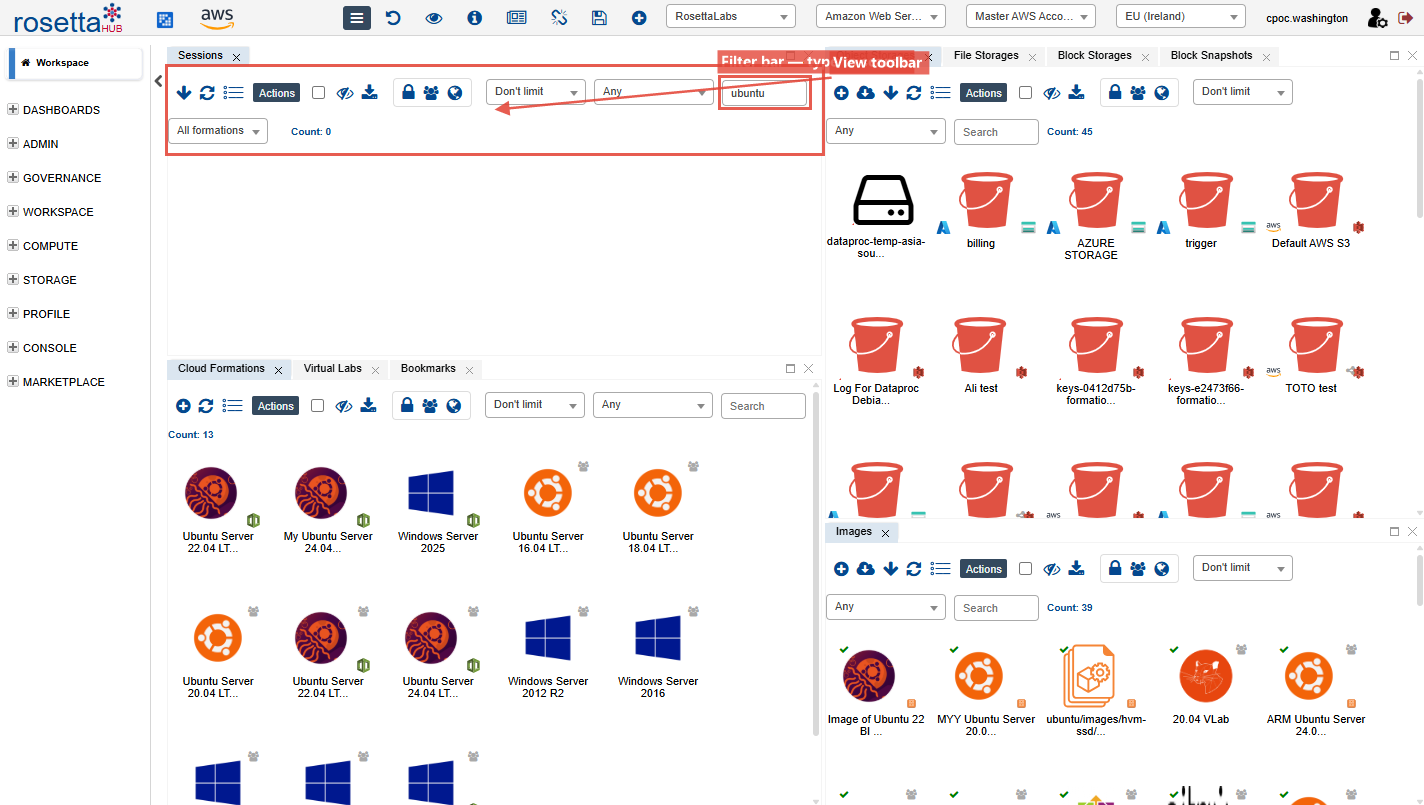
Table and Card Modes
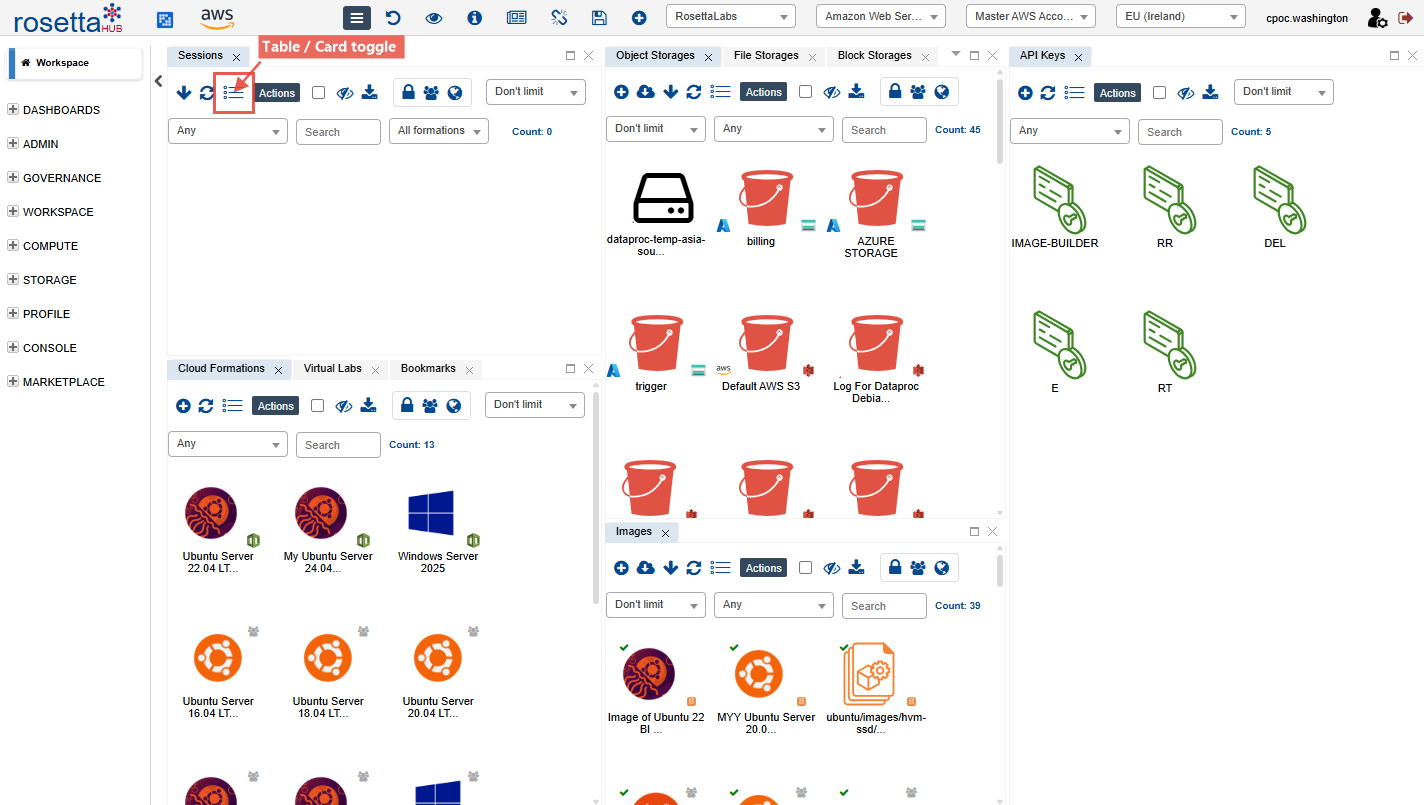
Switch between Table mode (detailed rows with sortable columns) and Card mode (visual tiles with key information):
- Use the mode toggle in the view toolbar
- Table mode is best for scanning many items
- Card mode is best for visual identification
Context Menus
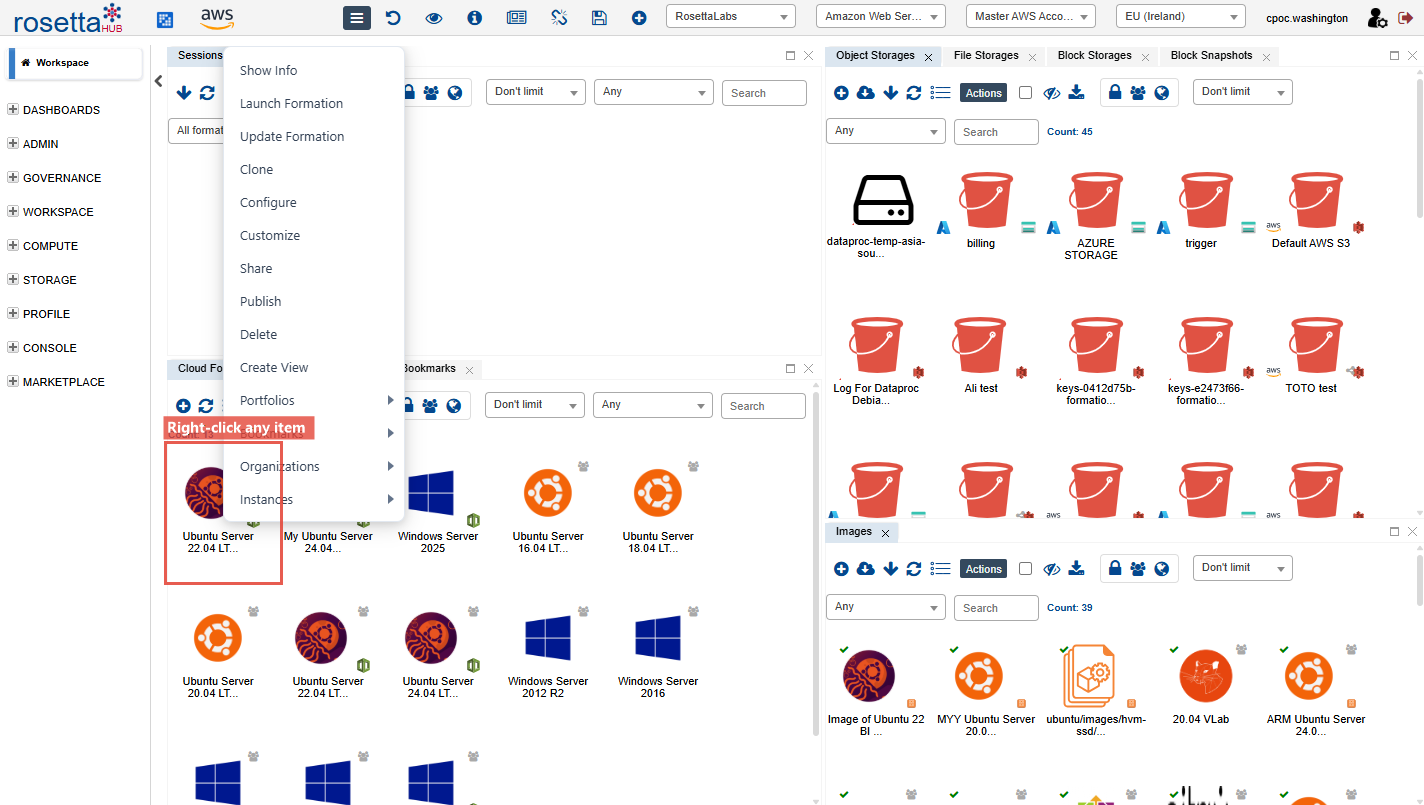
Right-click any artifact to see available actions:
- Launch, Stop, Terminate: lifecycle actions for formations and sessions
- Share: share with users, groups, or organizations
- Update: modify properties
- Delete: remove the artifact
- Add To Bookmarks: pin for quick access
Arranging Views
Customize your layout by moving, splitting, and resizing views:
- Drag a view tab to rearrange its position
- Drop a tab on an edge of another view to split the area horizontally or vertically
- Drop a tab on the center of another view to create a tabbed group
- Resize views by dragging the borders between them
- Maximize a view by double-clicking its tab; double-click again to restore
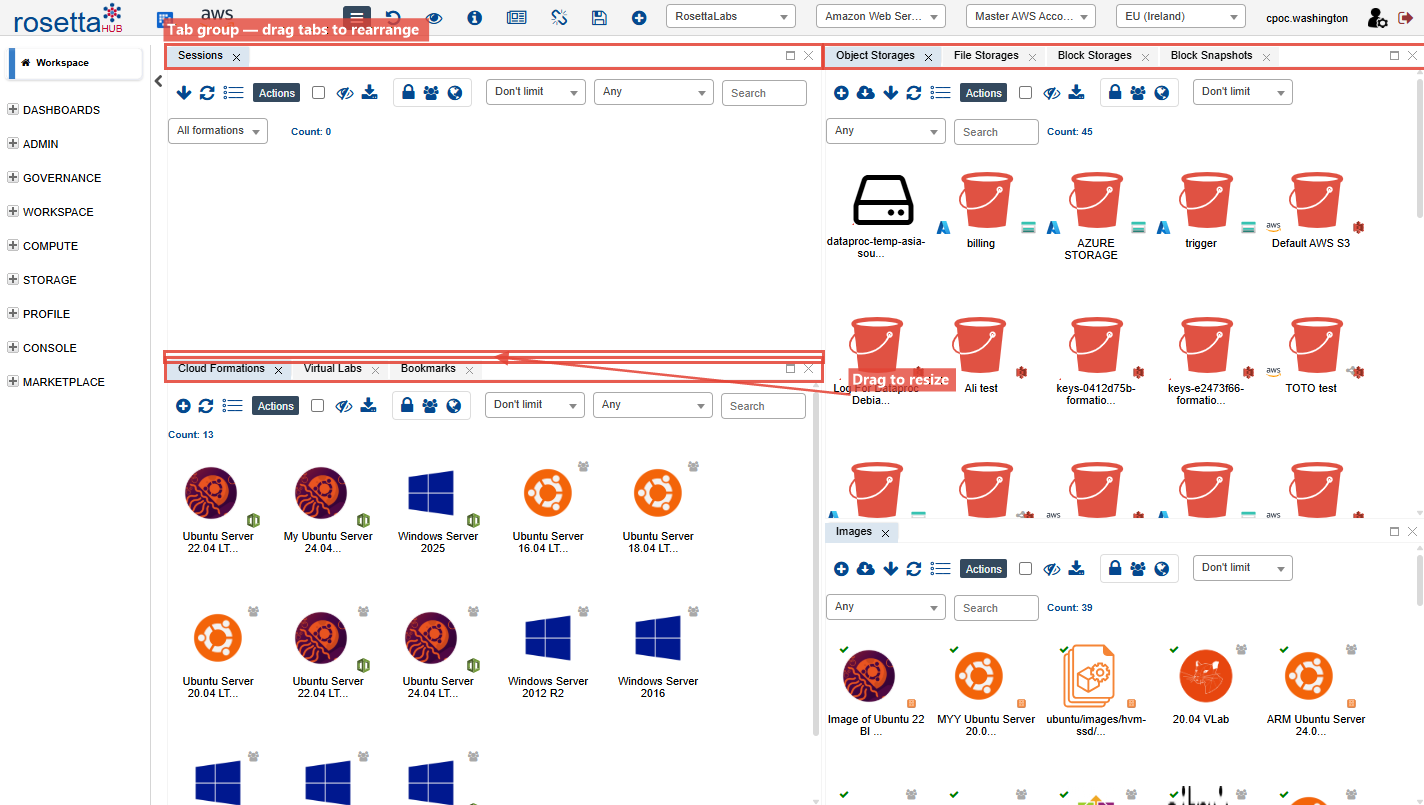
Changes made in the Workspace tab are automatically saved. Changes in perspective preview tabs are not.
Creating a Perspective
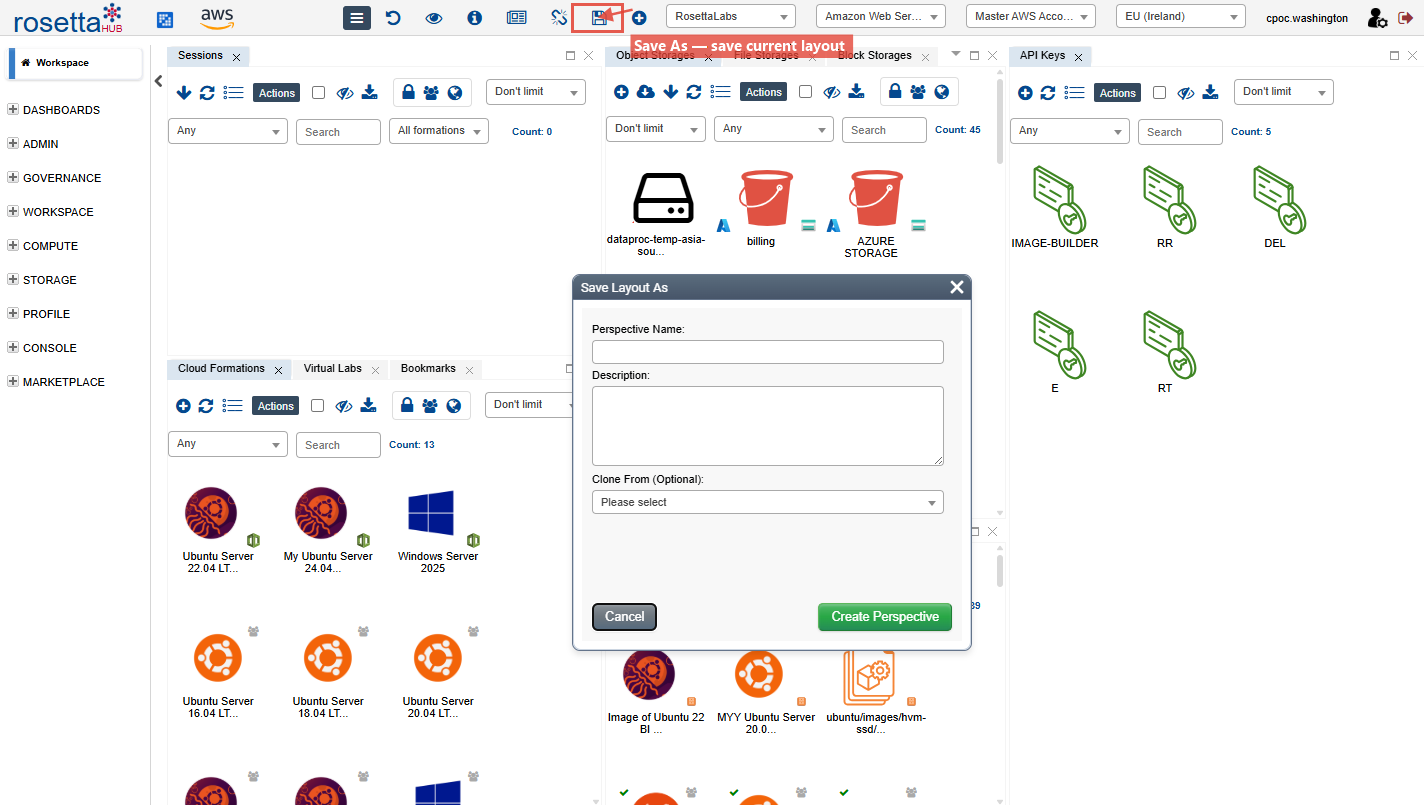
Once you have your views arranged, save the layout as a named perspective:
Step 1: Save
- Click the Save As button in the toolbar
- Enter a descriptive name for your perspective
- Click Save
Tip
Use descriptive names that reflect the workflow: "Development", "Cost Monitoring", "Admin Tasks", "Compliance Review".
Step 2: Assign to a Category (Optional)
Place your perspective in a category so it appears in the correct section of the left pane:
- Right-click the perspective → Update
- Set the Folder Name to the category (e.g., "COMPUTE", "ADMIN", "DASHBOARDS")
- Set the Perspective Index to control its position within the category
- Configure display options:
- Side Menu Visible: show/hide the left pane by default
- In Top Menu: include in the toolbar perspective list
- Filters Bar Visible: show/hide filter bars by default
- Show Details on Hover: enable hover tooltips
- Auto Zoom: auto-scale view contents
- Sync Mode: synchronization behavior
- View Mode: default card or table mode
Managing Perspectives
Update
To update the layout of an existing perspective:
- Modify your current layout in the Workspace
- Click Save to update the current perspective
To modify perspective properties:
- Right-click the perspective → Update
- Change properties: folder name, index, display options
Share
Share your perspective with others so they see the same layout and views:
- Right-click the perspective → Share
- Choose recipients: Users, Groups, or Organizations
- Set access level
- Confirm
When a perspective is shared, all views inside it are automatically shared with the recipients. This is how organization administrators control which views are available to their users.
Delete
- Right-click the perspective → Delete
- Confirm deletion
Warning
Deleting a perspective removes it for all users it was shared with.
Organization Perspectives
Organization managers can:
- Set a Default Perspective: enforce a default for all users so new members start with a curated workspace
- Share Perspectives: distribute perspectives to the organization
- Assign Categories: organize perspectives into meaningful folders
- Control Index: order perspectives within categories for logical navigation
Best Practices
Organization
- Create perspectives for each role or workflow
- Use descriptive names that reflect the perspective's purpose
- Assign perspectives to the appropriate category via folder name
- Set perspective index for logical ordering within categories
Sharing
- Test perspectives before sharing with the organization
- Set a default perspective for new users to provide a guided onboarding experience
- Keep shared perspectives stable: frequent changes affect all users
Views
- Use the filter bar to narrow results before scanning
- Switch to Table mode for dense data, Card mode for visual browsing
- Right-click artifacts for all available actions
- Bookmark frequently used artifacts for quick access across perspectives
Next Steps
- Custom Views: Add URL and HTML views to your perspectives
- Perspectives Reference: Complete reference
- Views Reference: Full view catalog