Getting Started
Overview
This tutorial walks you through your first login and introduces the perspectives available in the RosettaHub Federated Dashboard. Each perspective is a pre-built workspace tailored to a specific workflow: from day-to-day research computing to FinOps cost analytics and compliance monitoring.
Prerequisites
- [ ] RosettaHub account credentials
- [ ] Access to at least one cloud account
Step 1: Log In
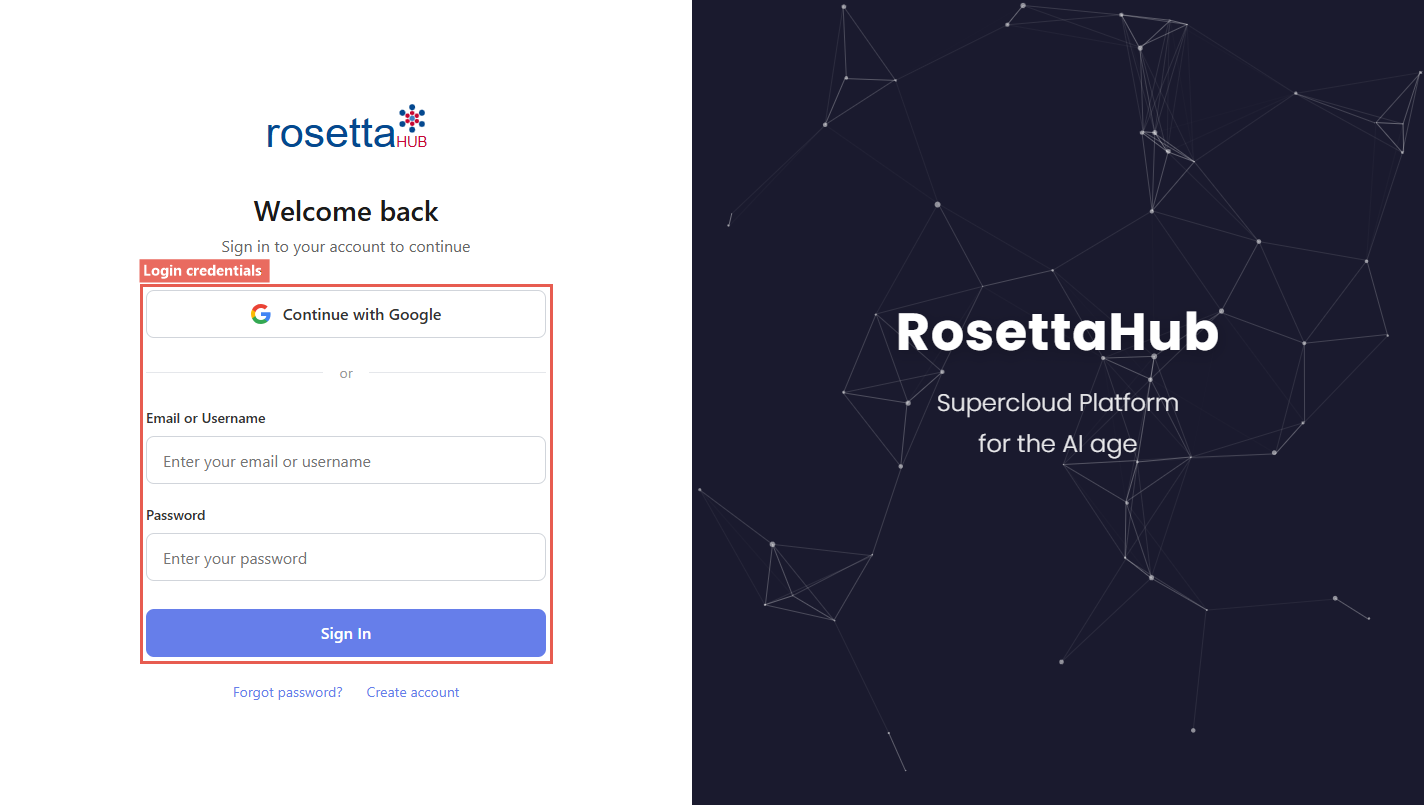
Navigate to https://www.rosettahub.com/console/Login and enter your credentials.
Tip
Bookmark the login page for quick access.
Step 2: The Dashboard at a Glance
After logging in, you'll see the Federated Dashboard:
| Area | Purpose |
|---|---|
| Left Pane | Browse perspectives organized by category |
| Toolbar | Perspective dropdown, cloud/account/region filters, add view, save layout |
| View Area | The current perspective's views |
| Status Bar | Notifications and status |
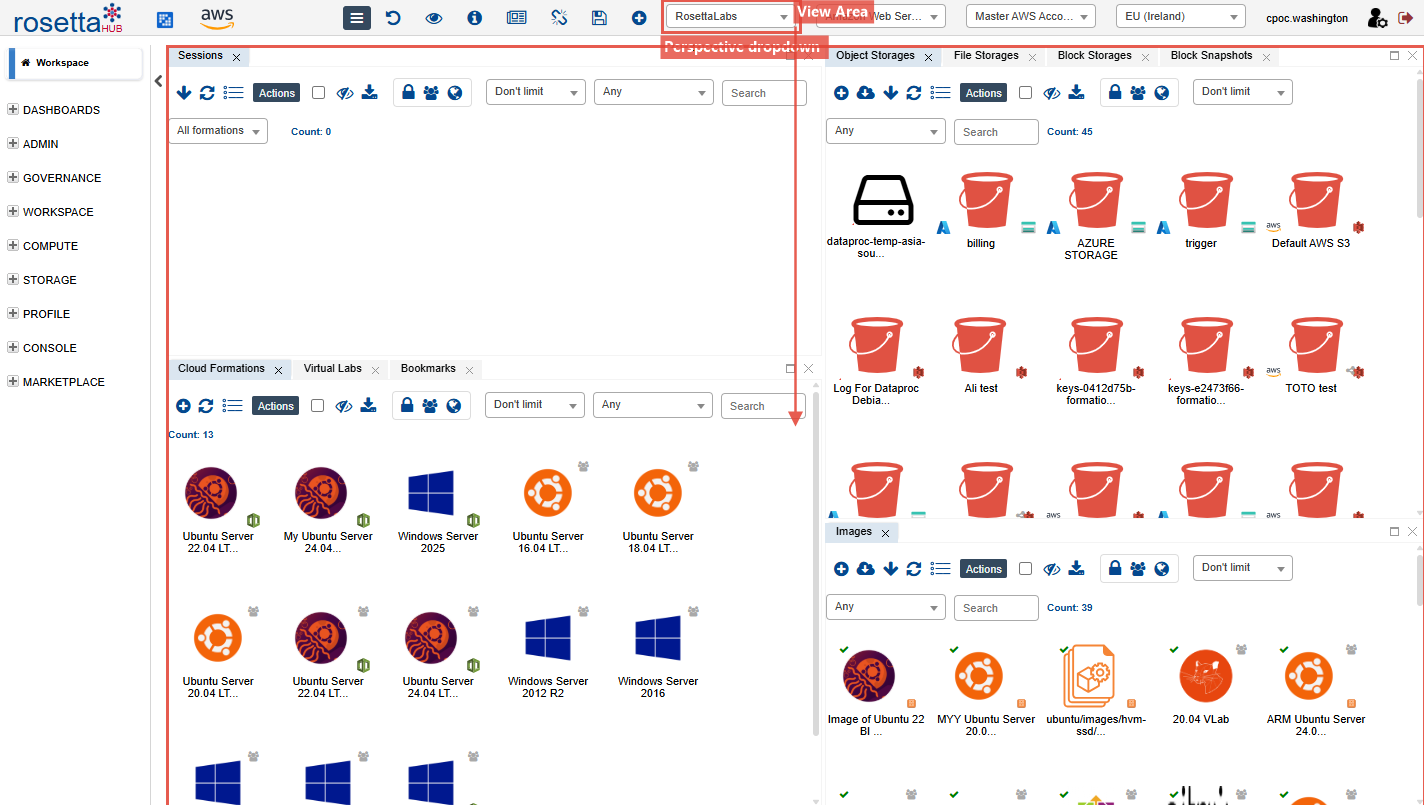
The left pane organizes perspectives into categories: DASHBOARDS, ADMIN, GOVERNANCE, WORKSPACE, COMPUTE, STORAGE, PROFILE, CONSOLE, and MARKETPLACE. The Workspace tab at the top is your personal default layout: any changes you make there are automatically saved.
Step 3: Switch Perspectives
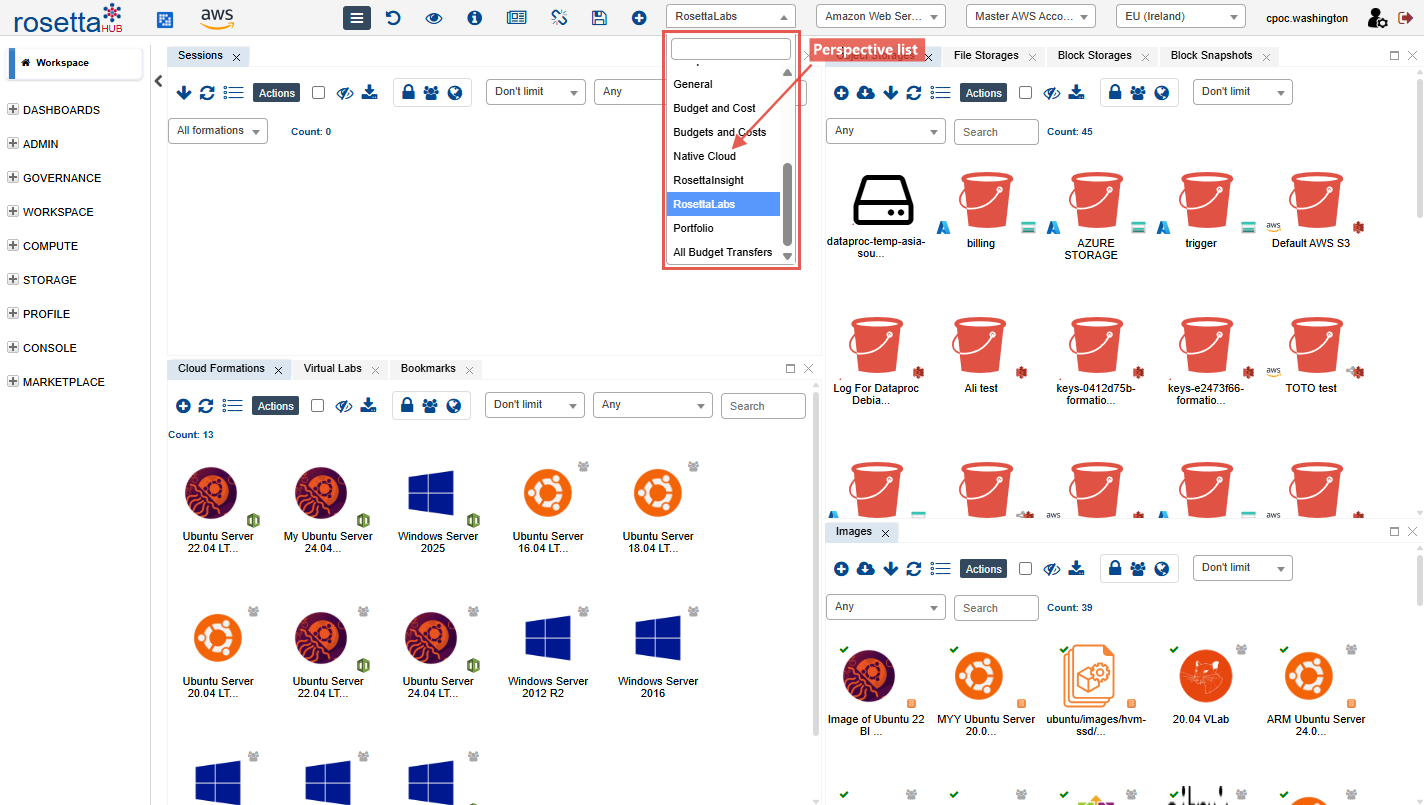
Click the perspective dropdown in the toolbar to switch between workspaces:
- Click the dropdown (it shows the name of your current perspective)
- Search or scroll to find the perspective you want
- Select it: the dashboard reloads with that perspective's layout
Info
Selecting a perspective from the dropdown changes your default layout. Clicking a perspective in the left pane only shows a read-only preview.
Available Perspectives
RosettaHub ships with public perspectives for every major workflow. Your organization may share additional perspectives, including FinOps dashboards, resource analytics, and custom workspaces.
Info
Not everyone sees the same perspectives. You see perspectives you own, perspectives shared with you, and public perspectives. If a perspective listed below is not visible, contact your organization administrator.
DASHBOARDS
The DASHBOARDS category contains FinOps and resource analytics perspectives shared by organization administrators. These perspectives embed Apache Superset dashboards directly in the console for cost analysis and resource visibility.
Typical DASHBOARDS perspectives include:
| Perspective | Description |
|---|---|
| Aggregated Costs | Total spending across all cloud accounts with drill-down by provider, service, and time period |
| Monthly Costs | Month-by-month cost trends and comparisons |
| Daily Costs | Day-level spending breakdown for spotting anomalies |
| Costs By Login | Per-user cost attribution for chargeback and showback |
| Resources | Cloud resources for a root cloud account, including all sub-accounts |
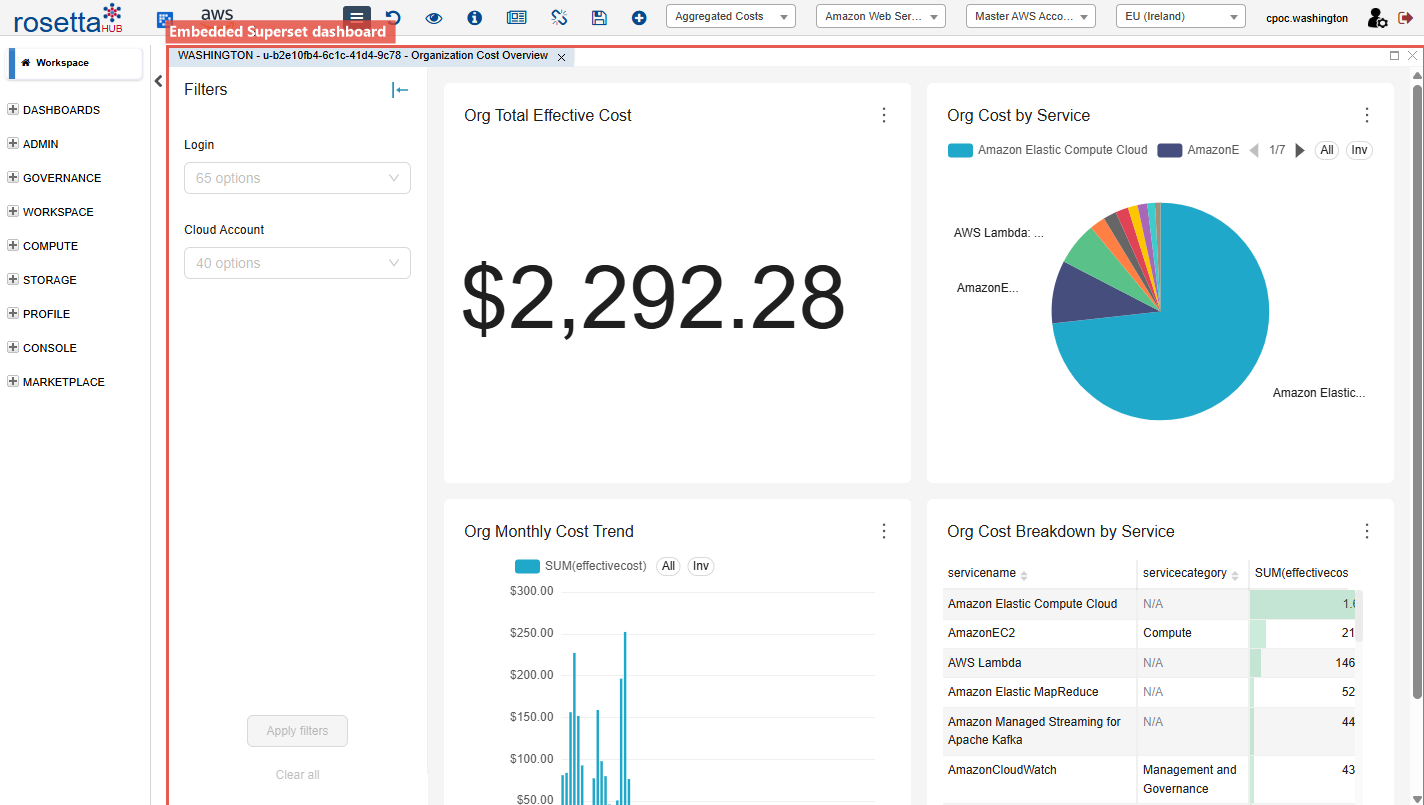
These dashboards pull data from RosettaHub's cost and resource aggregation engine. Filters for cloud provider, account, and region in the toolbar apply globally to all views in the perspective.
Note
DASHBOARDS perspectives are shared by your organization administrator. They are not public by default: if you do not see them, ask your administrator to share them with you.
WORKSPACE
Day-to-day perspectives for researchers and developers.
| Perspective | Description |
|---|---|
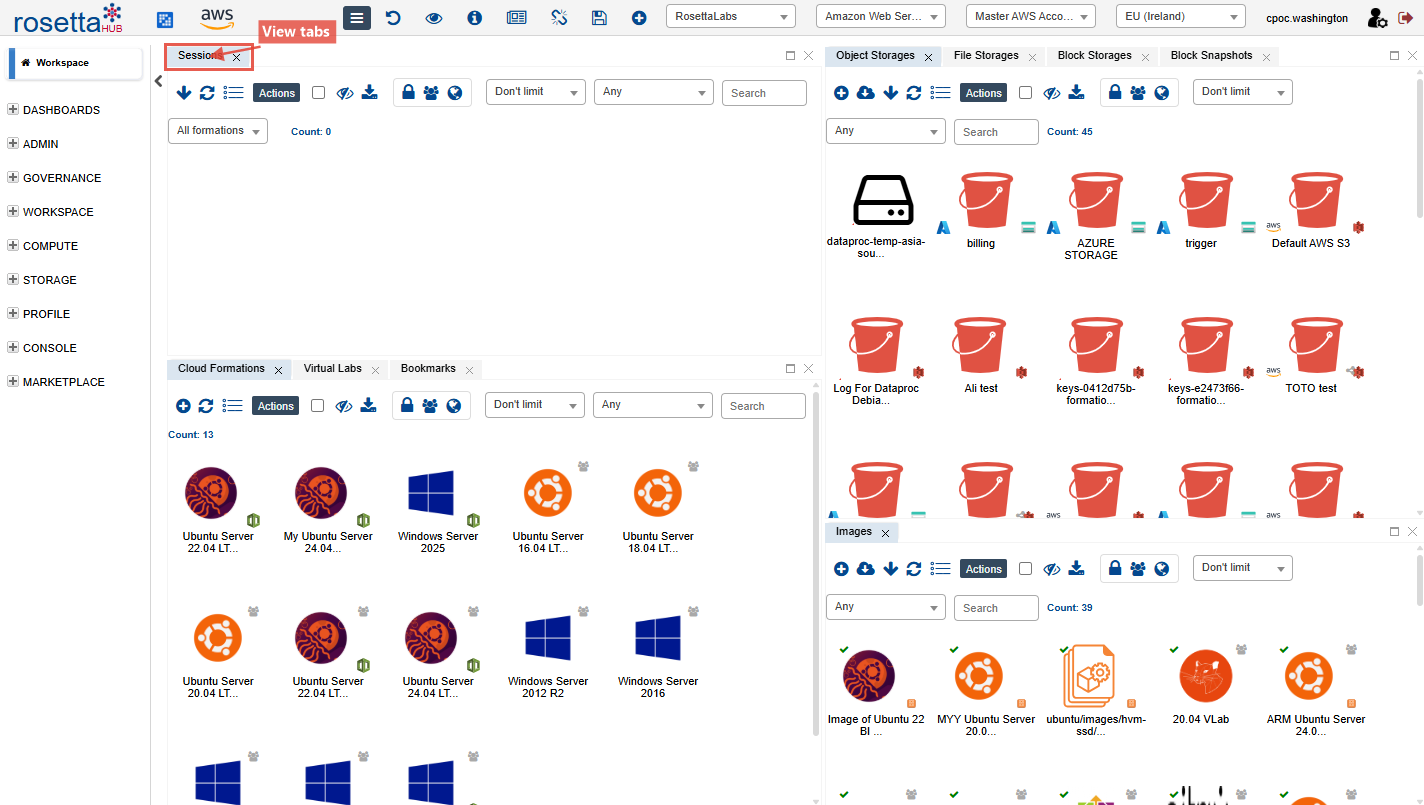
| RosettaCloud | Formations, sessions, images, object storage, key pairs: everything you need to run cloud workloads |
| RosettaCloud Analytics | Data science analytics and ML experiment tracking dashboards |
COMPUTE
Specialized compute perspectives.
| Perspective | Description |
|---|---|
| Keys | Cloud key management |
| Big Data | Big data lab formations (Hadoop, Spark on EMR/Dataproc) |
| HPC | High-performance computing formations (AWS Parallel Cluster) |
| Classrooms Mgt | Classroom environment management for instructors |
ADMIN
Organization-level administration for CPOCs and managers.
| Perspective | Description |
|---|---|
| Users | Manage organization members and roles |
| Users Cloud Accounts | Cloud accounts assigned to users |
| Organizations | Sub-organizations within the hierarchy |
| Organization Chart | Visual tree of the organizational hierarchy |
| Registrations | Pending and processed user registrations |
| Projects | Project management and assignment |
| Classrooms | Virtual classroom environments for teaching |
| Organizations Rules | Governance rules and policies applied to organizations |
| Cloud Account Pools | Pools of pre-configured cloud accounts for temporary access |
GOVERNANCE
Cost management, compliance monitoring, and cloud account oversight.
| Perspective | Description |
|---|---|
| Budgets and Costs / Budget and Cost | Budget transfers, vouchers, and cost allocation |
| Native Cloud | Native cloud provider resources for auditing and reconciliation |
| My Cloud Accounts | Your cloud accounts and configuration |
| General | Broad governance overview with compute, storage, and admin views |
| Permissions | Cloud services, regions, and instance type restrictions |
| Org. Charts (preview) | Organization chart preview |
STORAGE
Cloud storage perspectives.
| Perspective | Description |
|---|---|
| Object Storages | S3 buckets, Azure Blob containers, Cloud Storage buckets |
| Block Storages | EBS volumes, Managed Disks, Persistent Disks |
| Block Snapshots | Point-in-time snapshots of block storage |
| File Storages | EFS, Azure Files, Cloud Filestore |
PROFILE
Personal account settings and collaboration.
| Perspective | Description |
|---|---|
| Settings | User preferences and configuration |
| API Keys | API key management |
| Groups | Group memberships |
| Quotas | Resource quotas and limits |
| Portfolio / Portfolios | Your curated collections and shared portfolios |
| Bookmarks | Saved bookmarks to frequently used artifacts |
CONSOLE
Perspective and view management.
| Perspective | Description |
|---|---|
| Perspectives | Manage saved workspace layouts |
| Views | Browse and manage all available views |
Step 4: Save Your Perspective
Once you've found or customized a perspective you like, save it as your default workspace:
- Arrange your views as desired (drag, resize, add, or remove views)
- Click Save Perspective in the toolbar
- Give it a name like "My Workspace"
- Switch perspectives anytime from the dropdown
Tip
Your Workspace tab automatically saves changes. Named perspectives let you maintain multiple saved layouts for different workflows.
Step 5: Explore a View
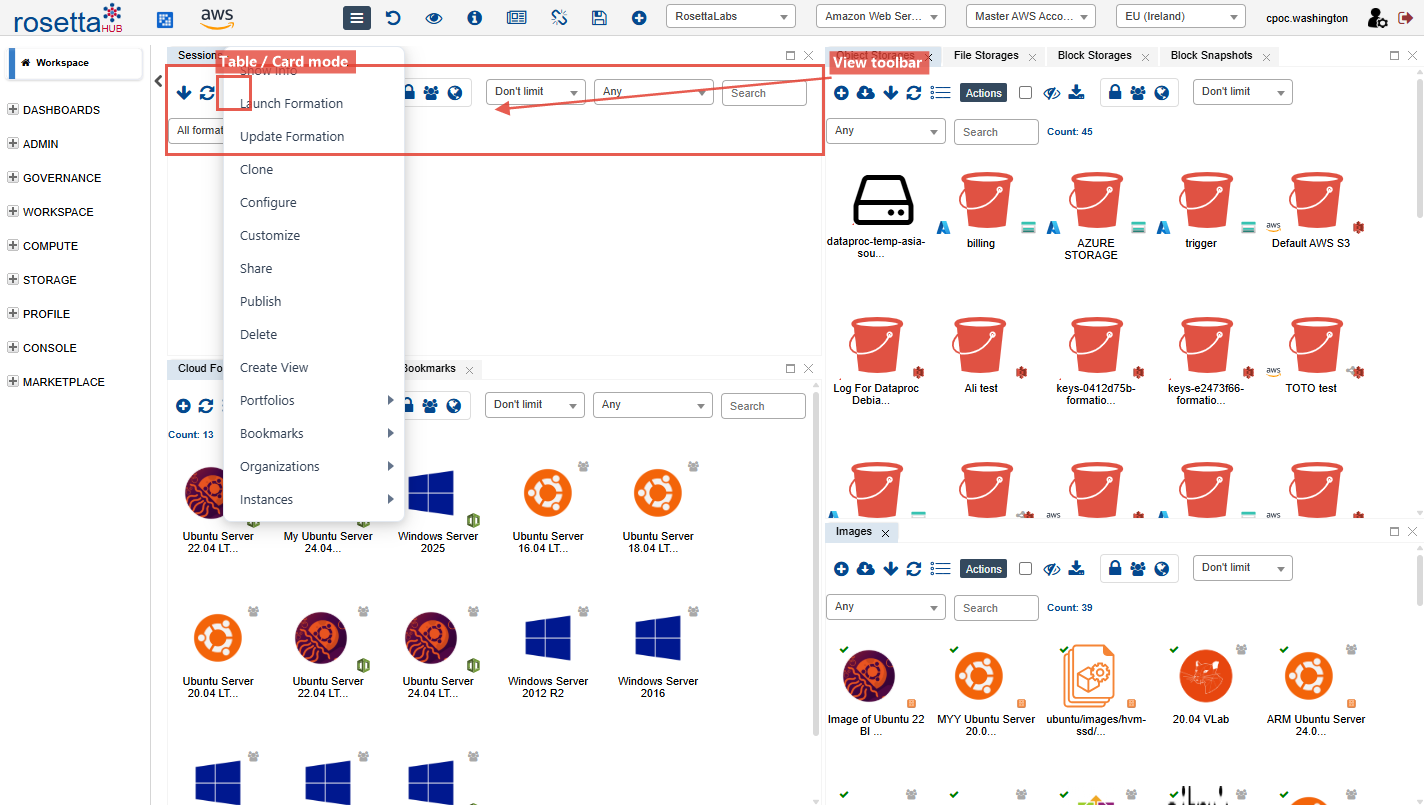
Each view inside a perspective is an interactive content area. Try these common actions:
- Filter: Type in the filter bar at the top of a view and press Enter to search
- Switch mode: Toggle between Table and Card layouts using the view's mode control
- Context menu: Right-click any artifact to see available actions (launch, share, delete, etc.)
- Bulk operations: Select multiple items and apply actions in batch
Summary
You've learned how to:
- Log in to RosettaHub
- Navigate the dashboard interface
- Switch perspectives using the toolbar dropdown
- Save custom perspective layouts
- Understand the available perspectives for different workflows
- Interact with views inside a perspective
Next Steps
- Working with Perspectives: Create, arrange, and share custom perspectives
- Create a Formation: Launch your first cloud-agnostic IaC recipe
- Manage SSH Keys: Set up secure access
- Key Concepts: Learn RosettaCloud and RosettaOps terminology