Budgets and Costs
Overview
Every organization, project and cloud account in RosettaHub can have a budget. Costs come in from the clouds as they are incurred, so you see what has been spent against each budget as it happens, not at the end of the month. When an account reaches its budget, the Monitoring Service acts on it.
This tutorial shows the organization's spending, then how to give a cloud account a budget, move budget between accounts, and issue funds.
Prerequisites
- [ ] A RosettaHub account with an administrator or manager role in an organization
Follow the spending
Open Organization Budget
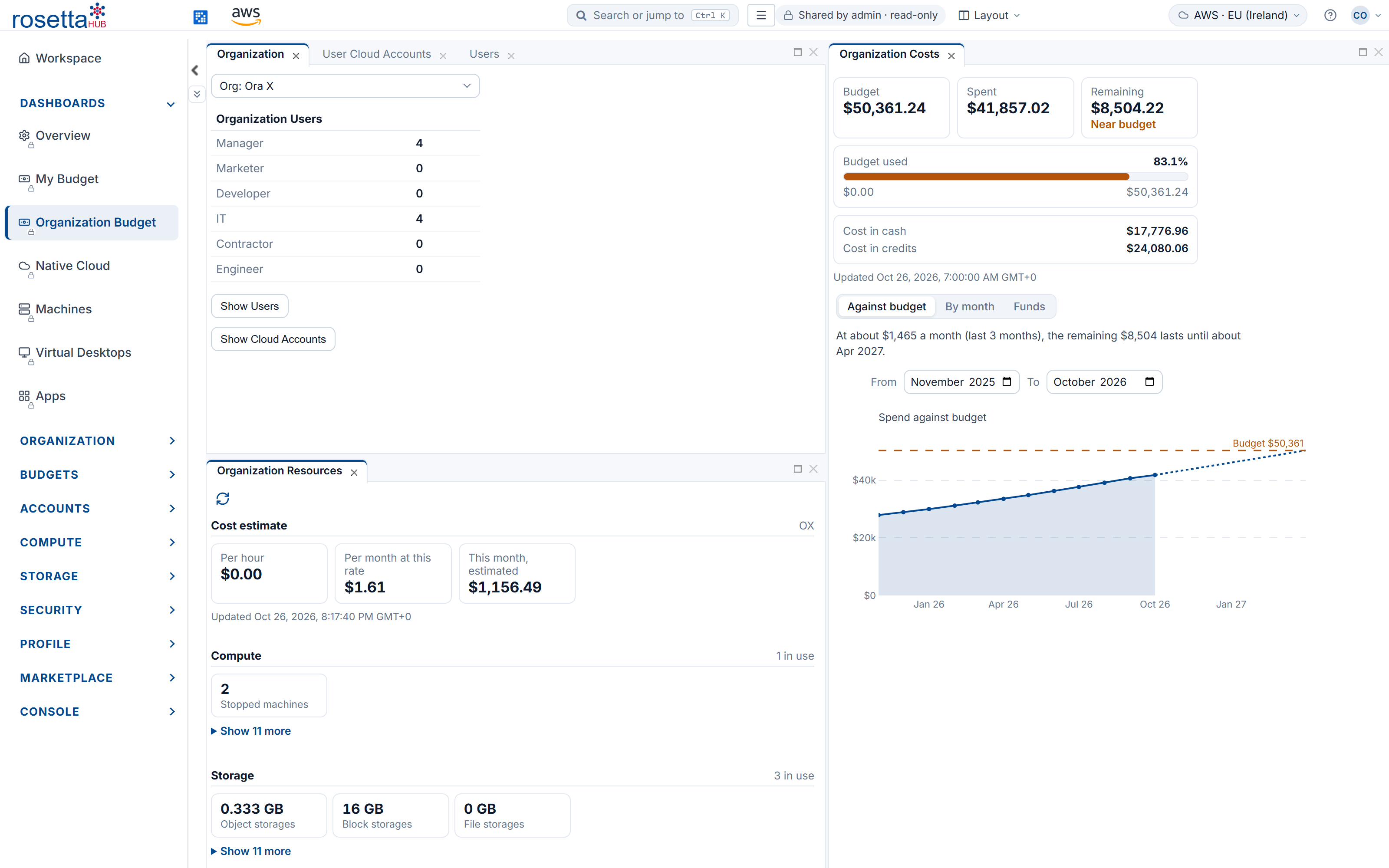
In the side menu, open DASHBOARDS → Organization Budget. It shows the organization, its users and cloud accounts, its resources, and its costs side by side. Choose the organization in Org at the top of each view.
Against budget
Organization Costs opens on Against budget: the budget, what has been spent and what remains, the share used, and how much of the cost was paid in cash and in credits. The line under it says how long the remaining budget lasts at the current rate.
By month
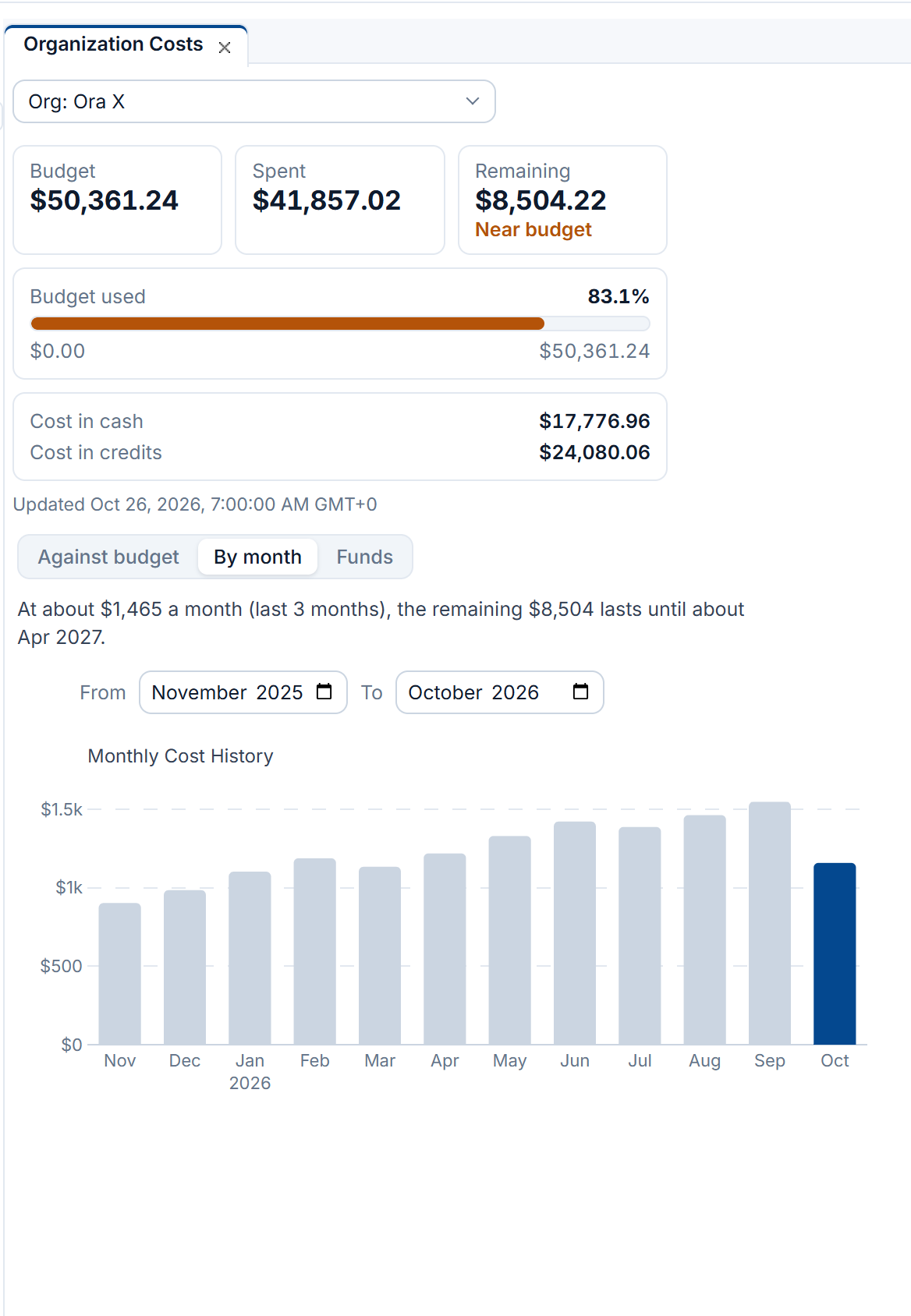
By month shows what was spent each month. Use From and To to choose the months. Once billing codes are set on organizations, projects or accounts, By cost centre splits each month's cost by them, for chargeback.
Set and move budgets
Right-click a cloud account and open Budget
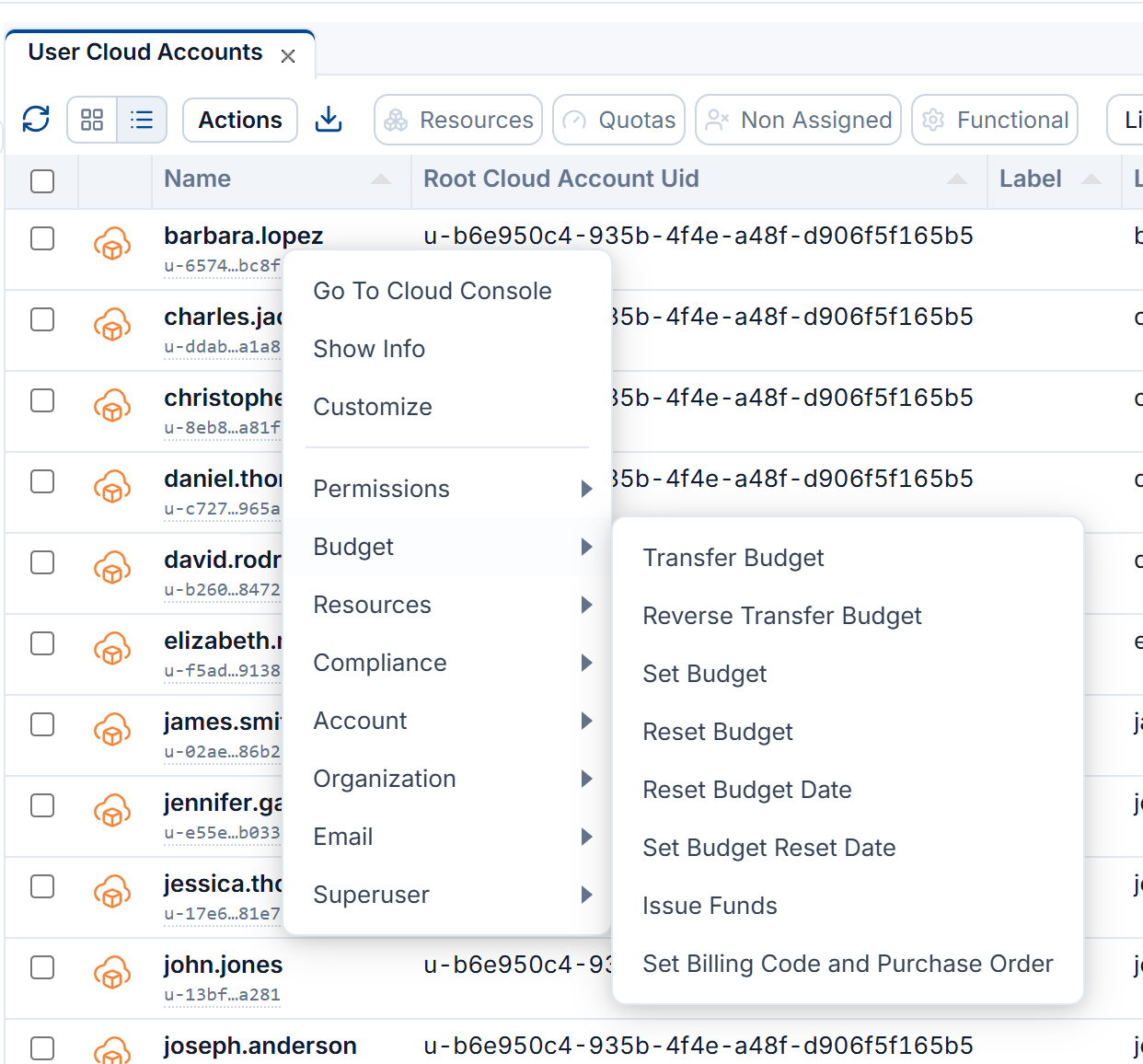
In ORGANIZATION → User Cloud Accounts, right-click an account and open Budget. Select several accounts first to act on all of them at once.
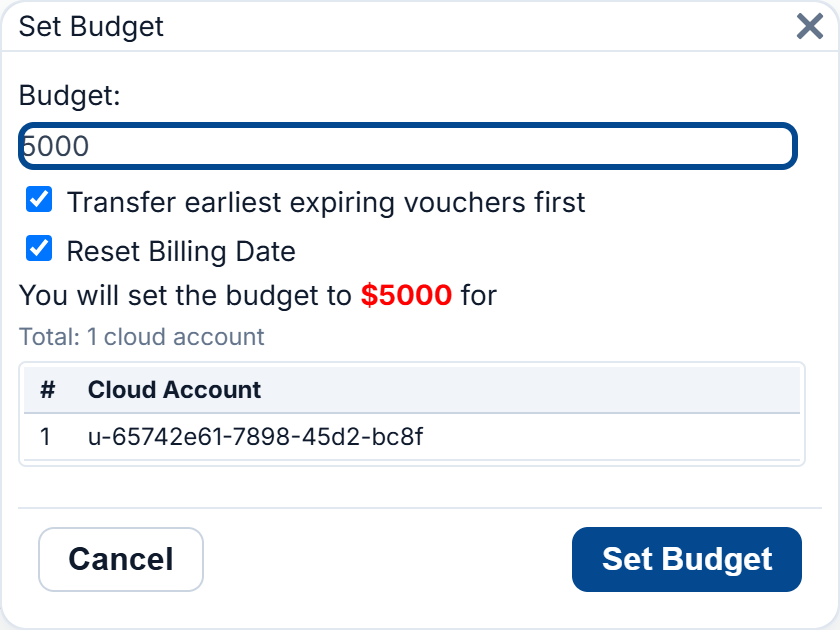
Set Budget
Enter the Budget for the account. Reset Billing Date starts its billing cycle again from today; Transfer earliest expiring vouchers first uses funds that expire soonest first. The window repeats the amount and lists the accounts it applies to before you click Set Budget.
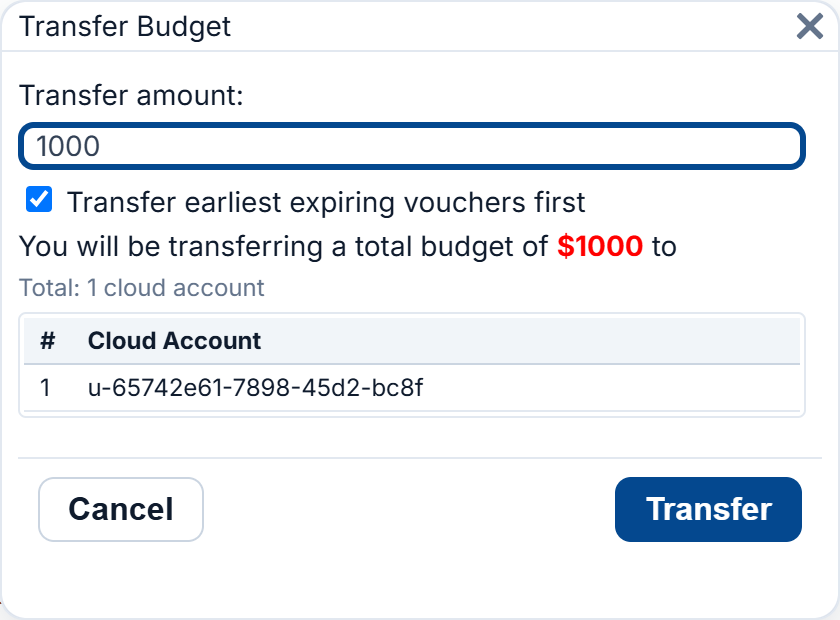
Transfer Budget
Transfer Budget moves an amount of budget to the account, from the organization's. Reverse Transfer Budget moves it back. Every transfer is recorded.
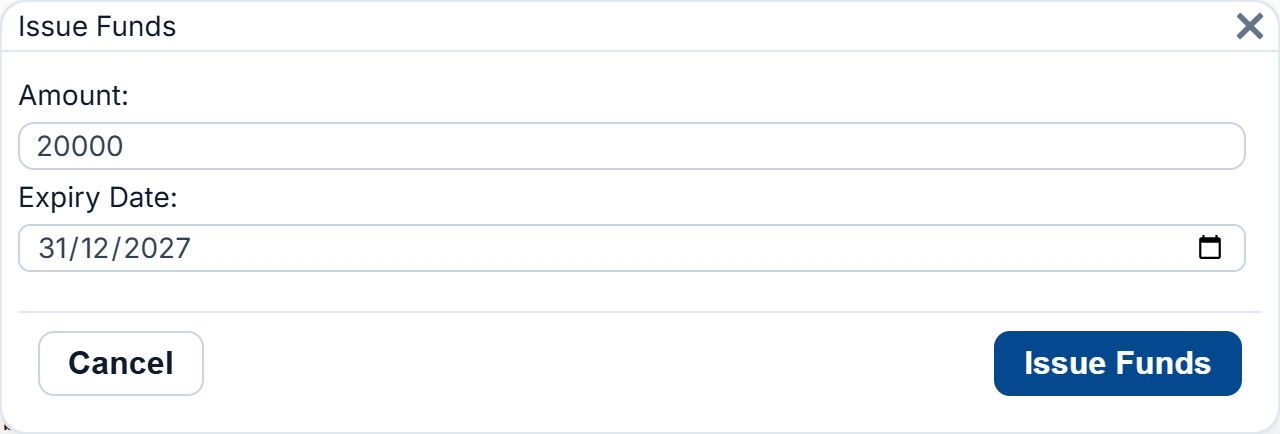
Issue Funds
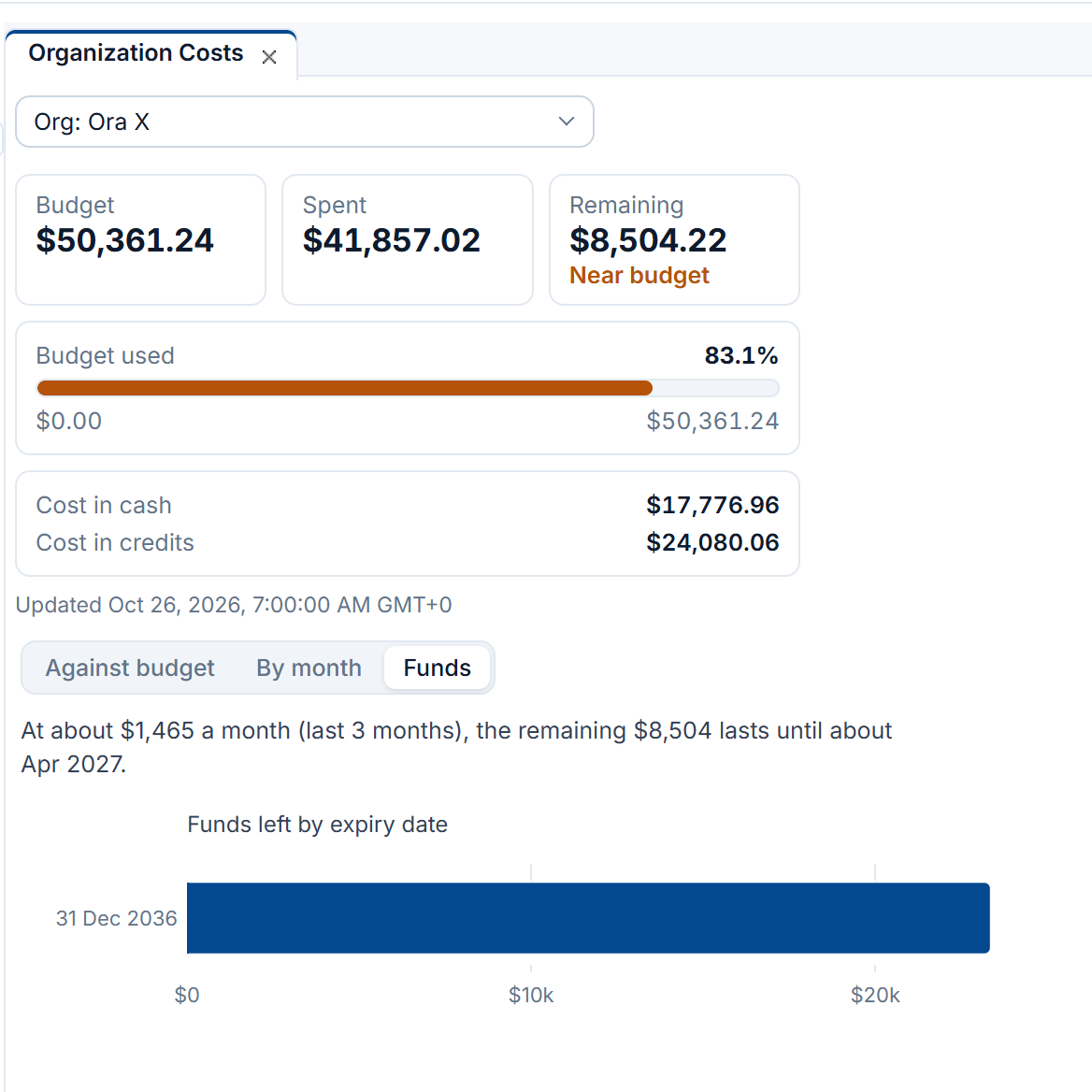
Issue Funds adds an Amount the account can spend: cash, such as a department's own money, or credits, such as those a cloud provider grants. Each issue of funds has an Expiry Date.
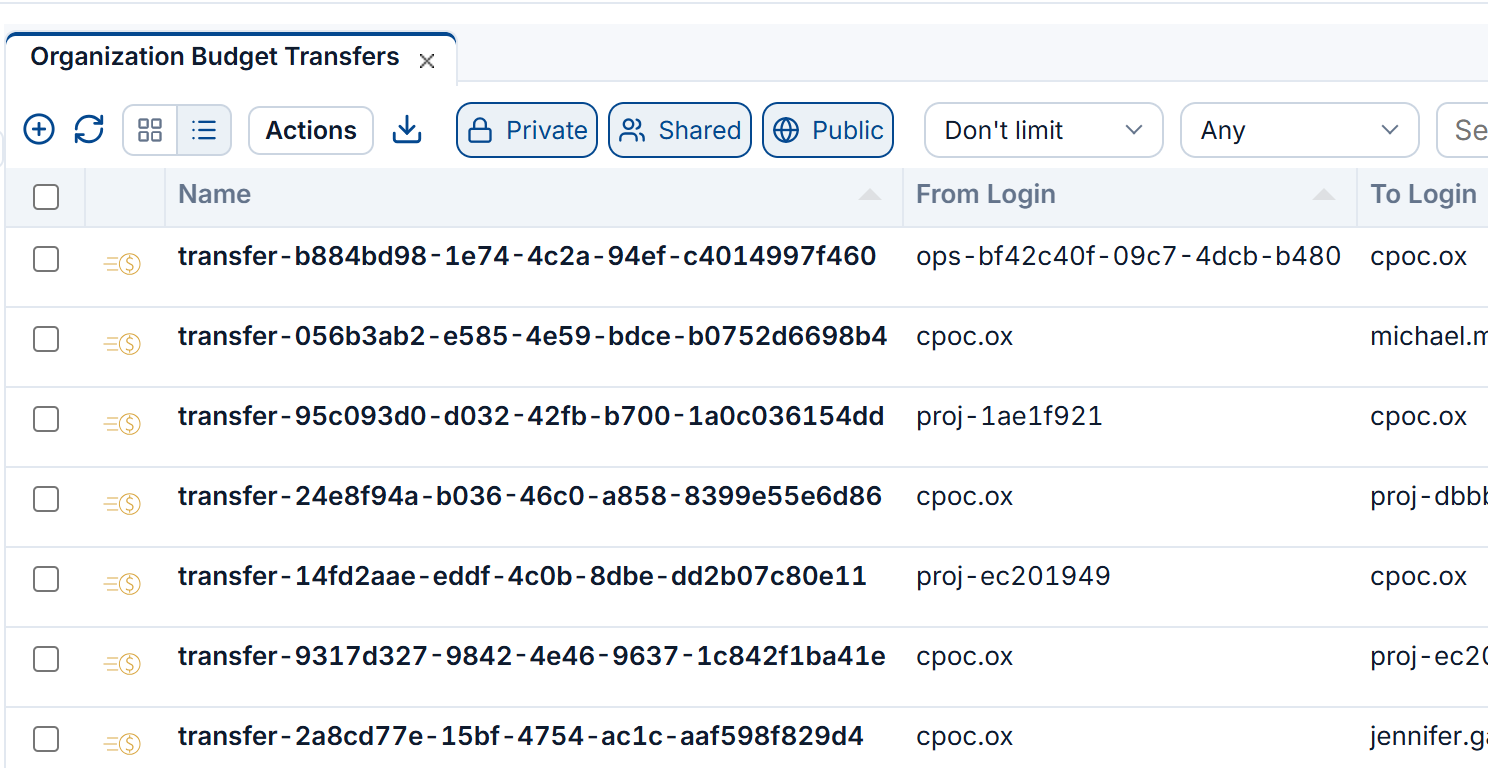
See every transfer
BUDGETS → Organization Budget Transfers lists the transfers made in the organization, and Organization Funds the funds issued.
Your own budget
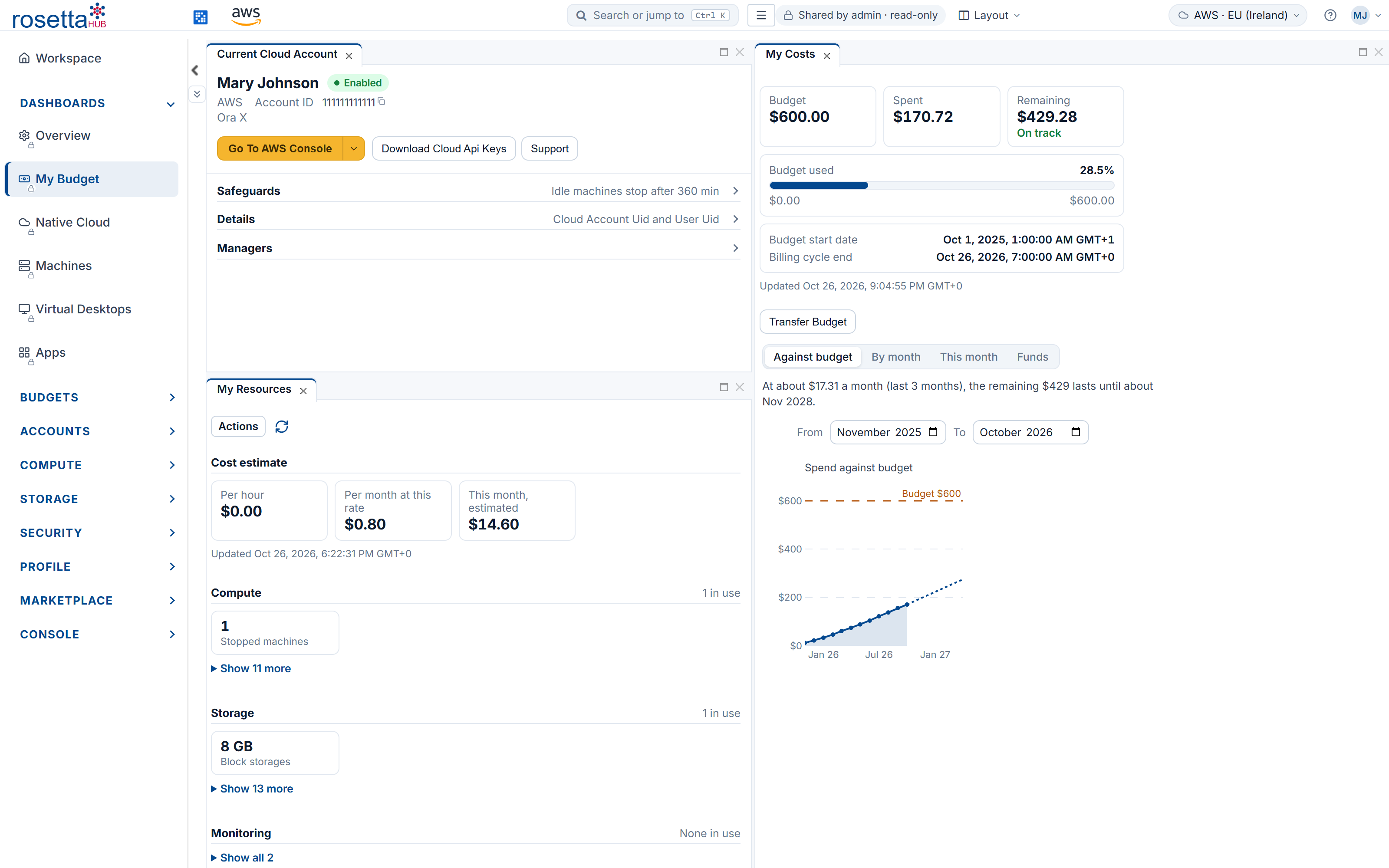
Everyone sees their own budget in DASHBOARDS → My Budget: their cloud account's budget, what they have spent, and the same monthly and funds views.
Next Steps
- Guardrails: limit what can be spent and used before it is spent
- The Organization Chart: every budget in the organization, at a glance
- Cost Management and Cost Allocation: how costs are collected and split