Guardrails
Overview
Guardrails decide what the people in an organization can do in the cloud before they do it: which services, regions and instance types they may use, which AI models they may call, how many machines and how much storage they may run, and what happens to resources left idle. RosettaHub applies them in the cloud accounts themselves, so they hold whether people work through RosettaHub or straight in the cloud's own console.
You set them on an organization, a project or a single user, from Permissions in the right-click menu. People inherit the guardrails of the organizations they belong to.
Prerequisites
- [ ] A RosettaHub account with an administrator role in an organization
Choose what can be used
Open Organizations
In the side menu, open ORGANIZATION → Organizations. Each row is an organization, with what it has spent and its budget.
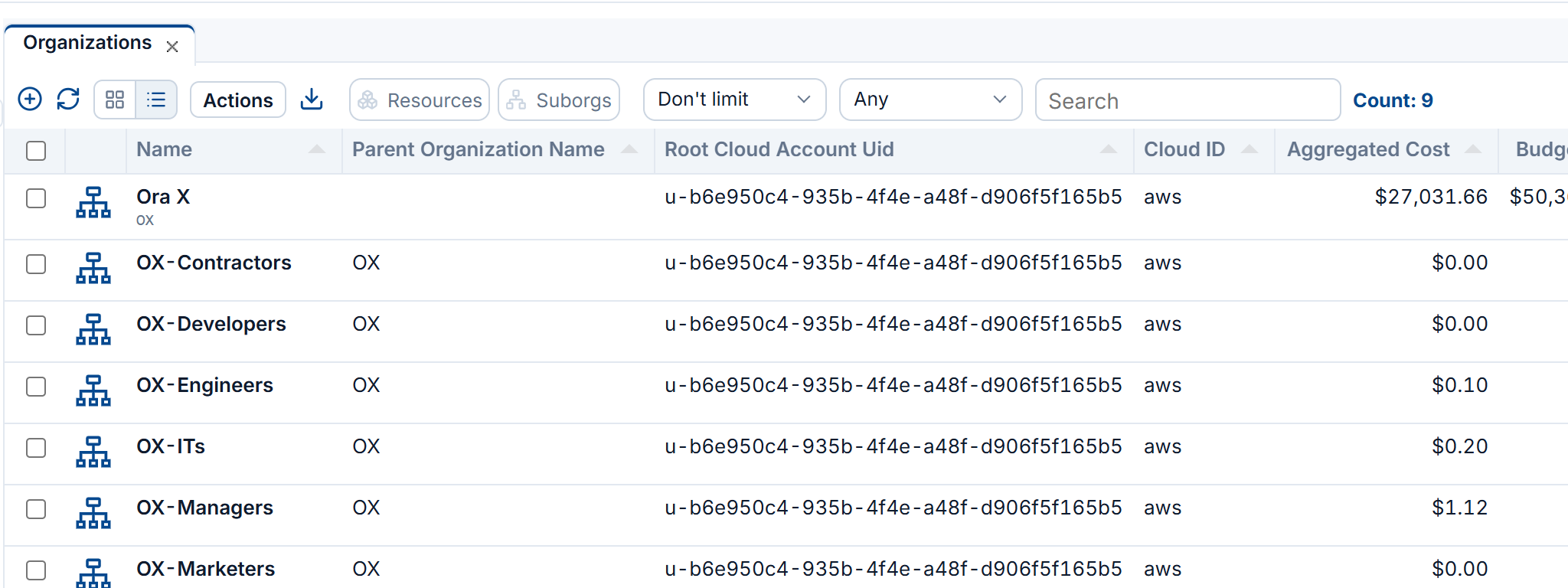
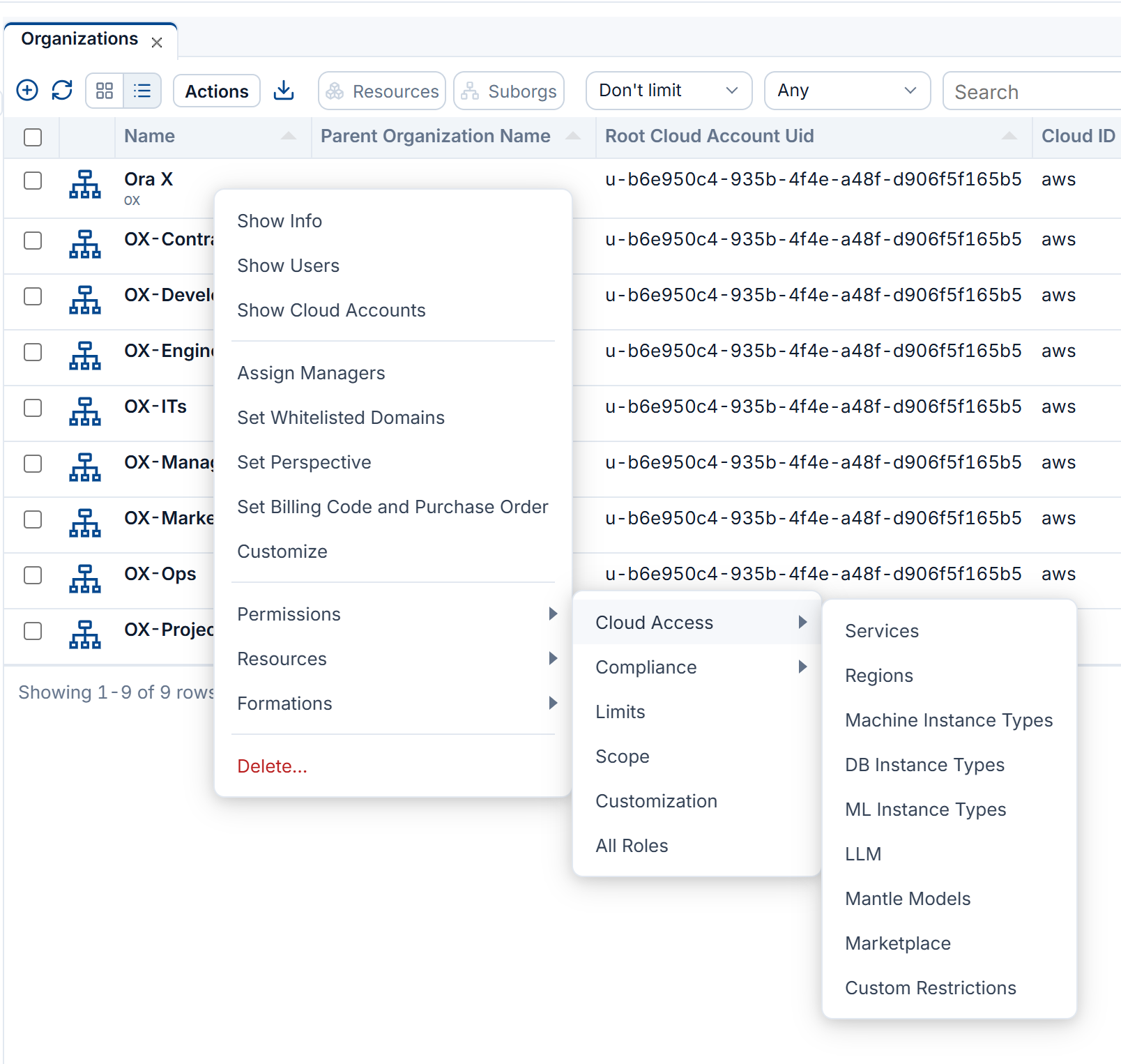
Right-click it and open Permissions → Cloud Access
Cloud Access lists what can be allowed: Services, Regions, Machine Instance Types, DB Instance Types, ML Instance Types, LLM models, Marketplace products, and Custom Restrictions of your own.
Services
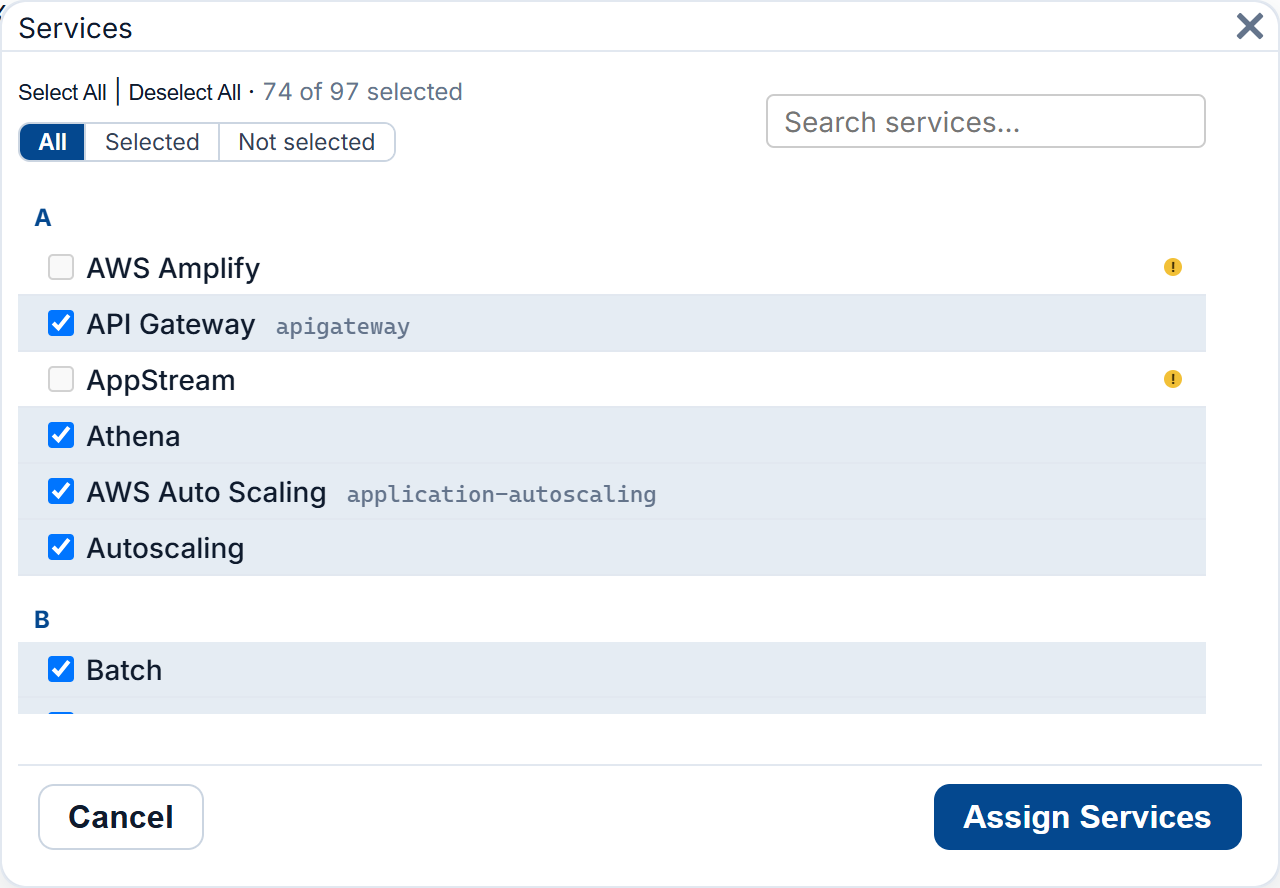
Tick the cloud services the organization may use and click Assign Services. Only those can be called in its cloud accounts; the count at the top says how many are allowed. Selected and Not selected filter the list, and the search box finds a service by name.
Instance types
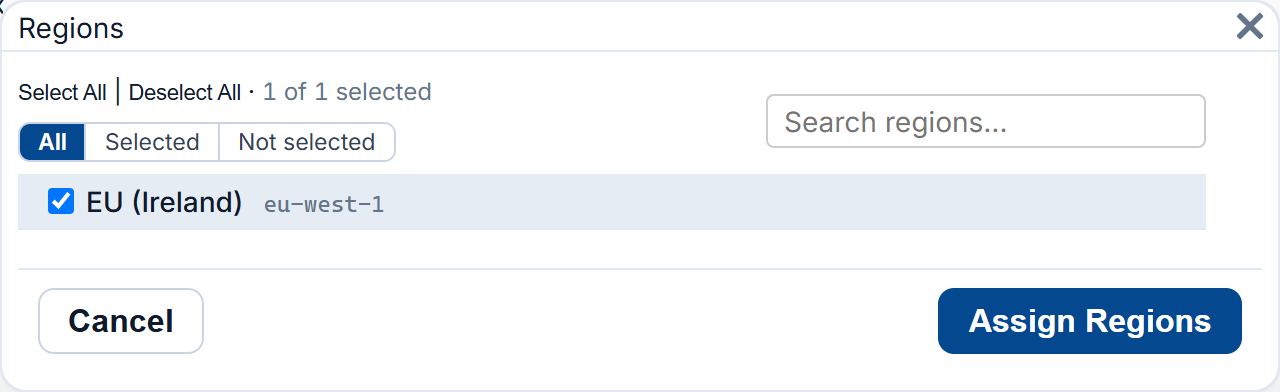
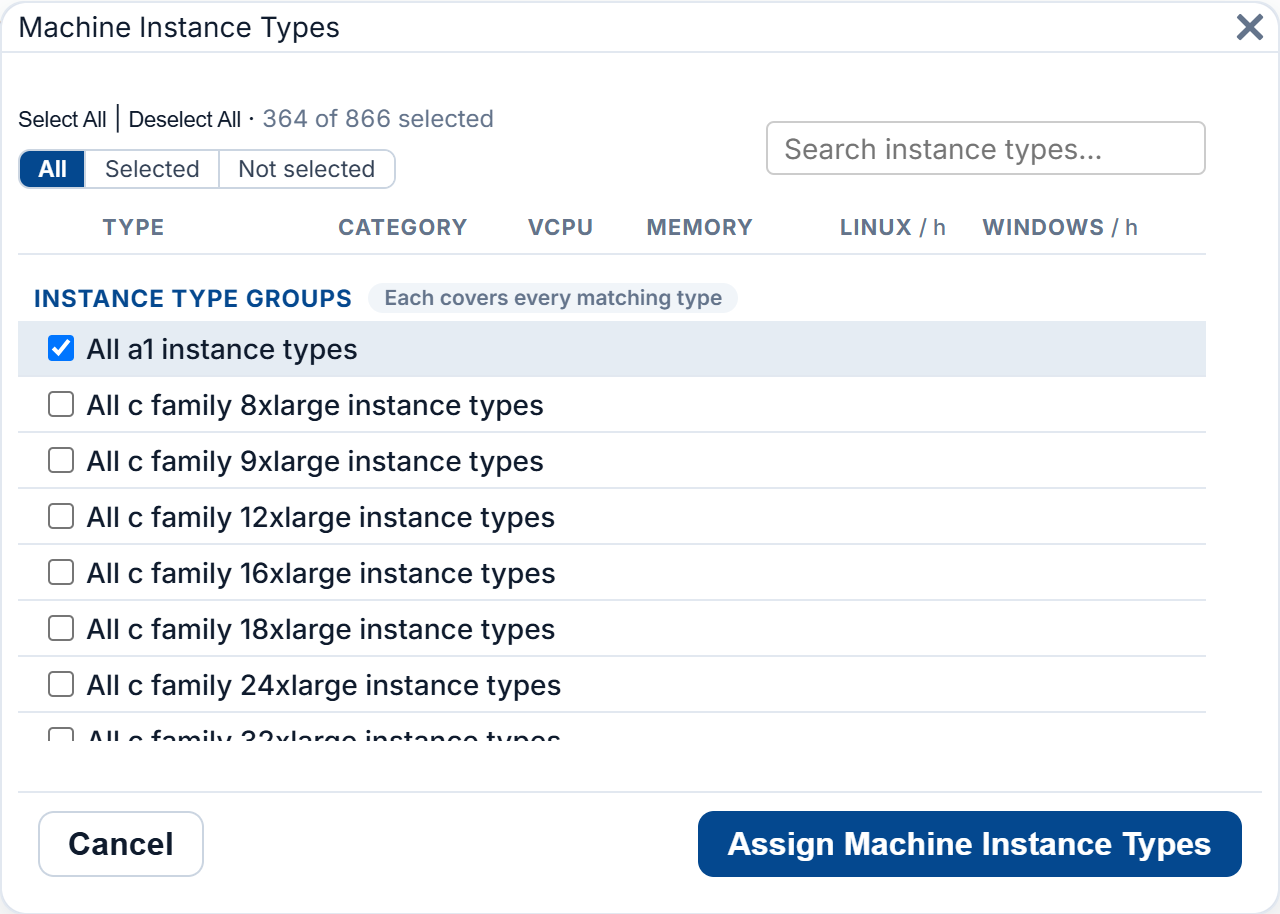
Machine Instance Types works the same way, for the sizes of machine that may be launched. Allowing only the sizes people need is the simplest way to keep costs predictable. Instance types are enforced on AWS, Azure and Alibaba Cloud; Google Cloud is not covered yet.
AI models
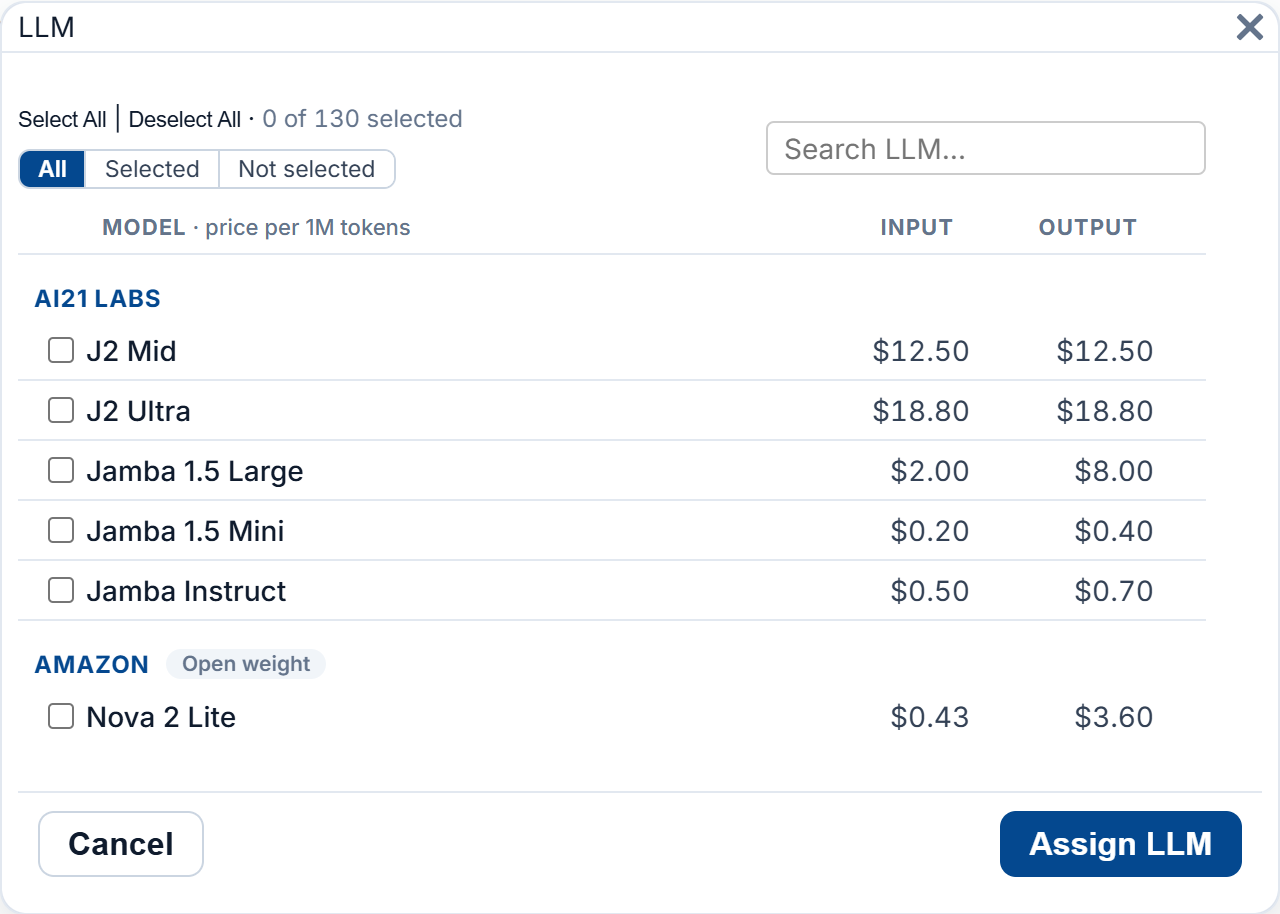
LLM lists the models available on the cloud, by provider, with their price per million input and output tokens. Tick the ones the organization may call and click Assign LLM; any other model is refused.
Limit how much can run
Limits
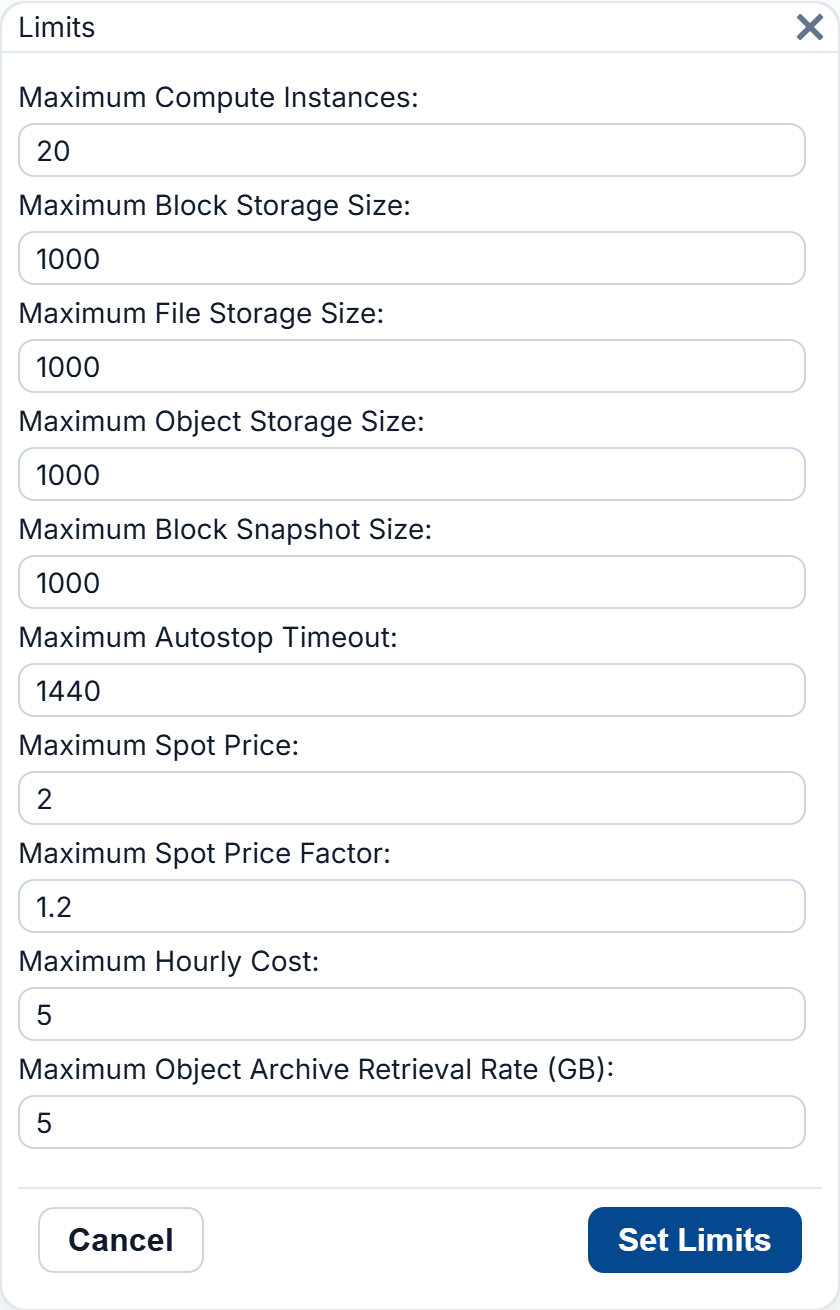
Permissions → Limits caps what each person in the organization may run at once: the number of machines, the size of block, file, object and snapshot storage, the longest autostop timeout, the highest spot price, and the highest Maximum Hourly Cost. Click Set Limits.
Compliance
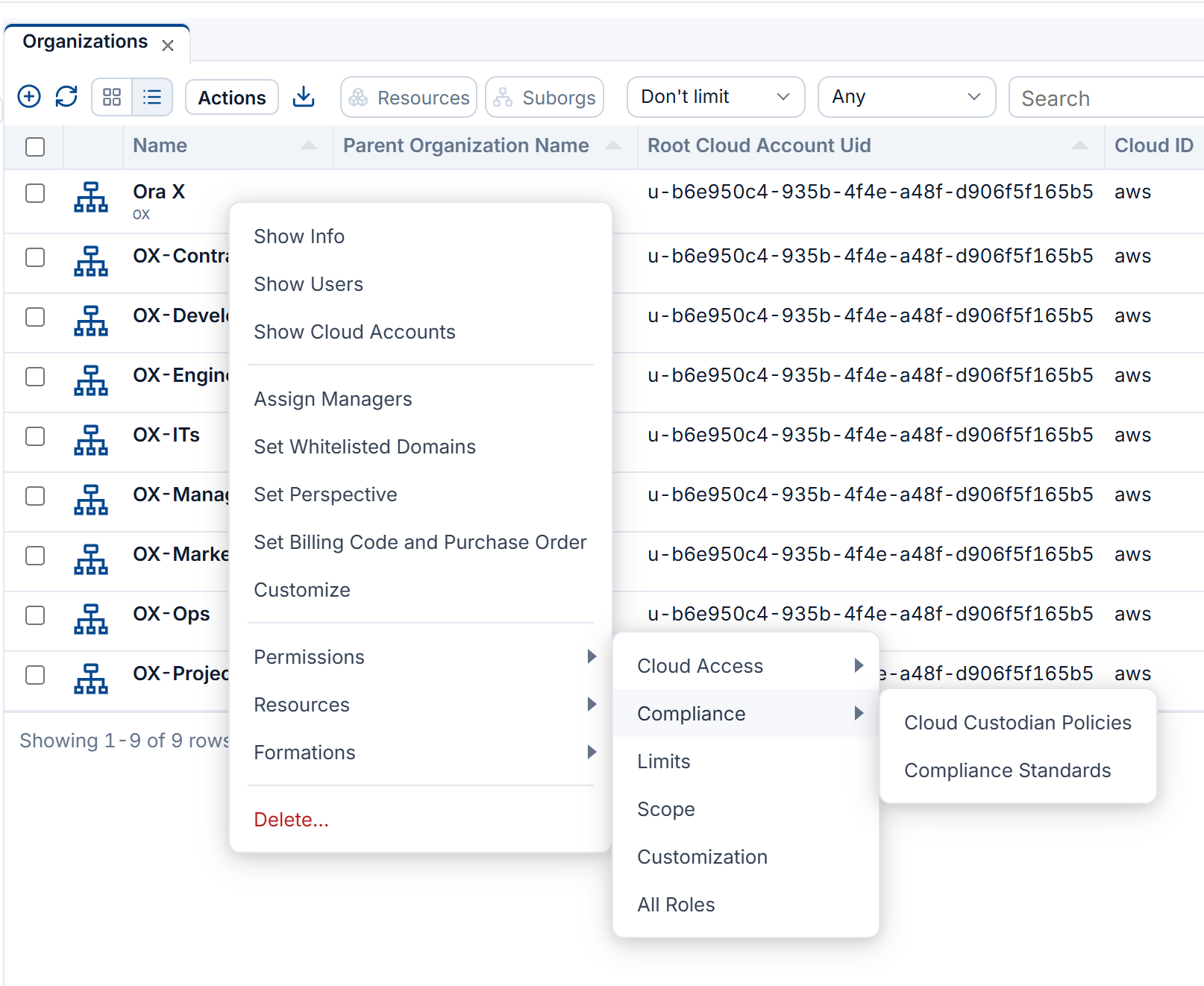
Permissions → Compliance sets which compliance policies apply to the organization's accounts. See Compliance for running them.
Deal with idle resources
Open Resources
Right-click the organization and open Resources: Refresh collects its resources again, Detect Idle finds the ones nobody uses, and Manage Idle acts on them.
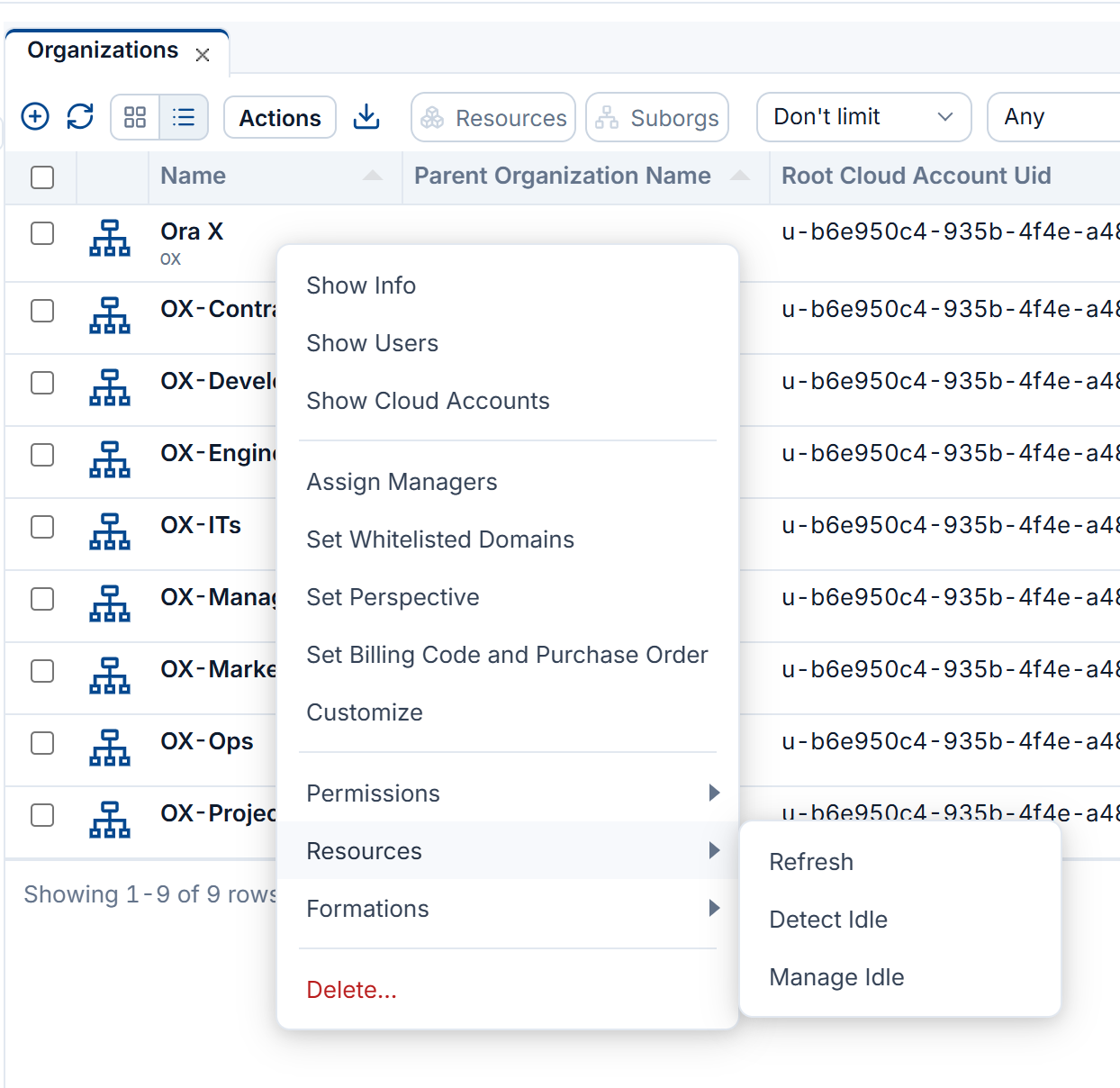
Manage Idle
Choose the Services and Regions to act in and what to do in Action Configs. Keep Preserve Data ticked to keep the data of the resources removed.
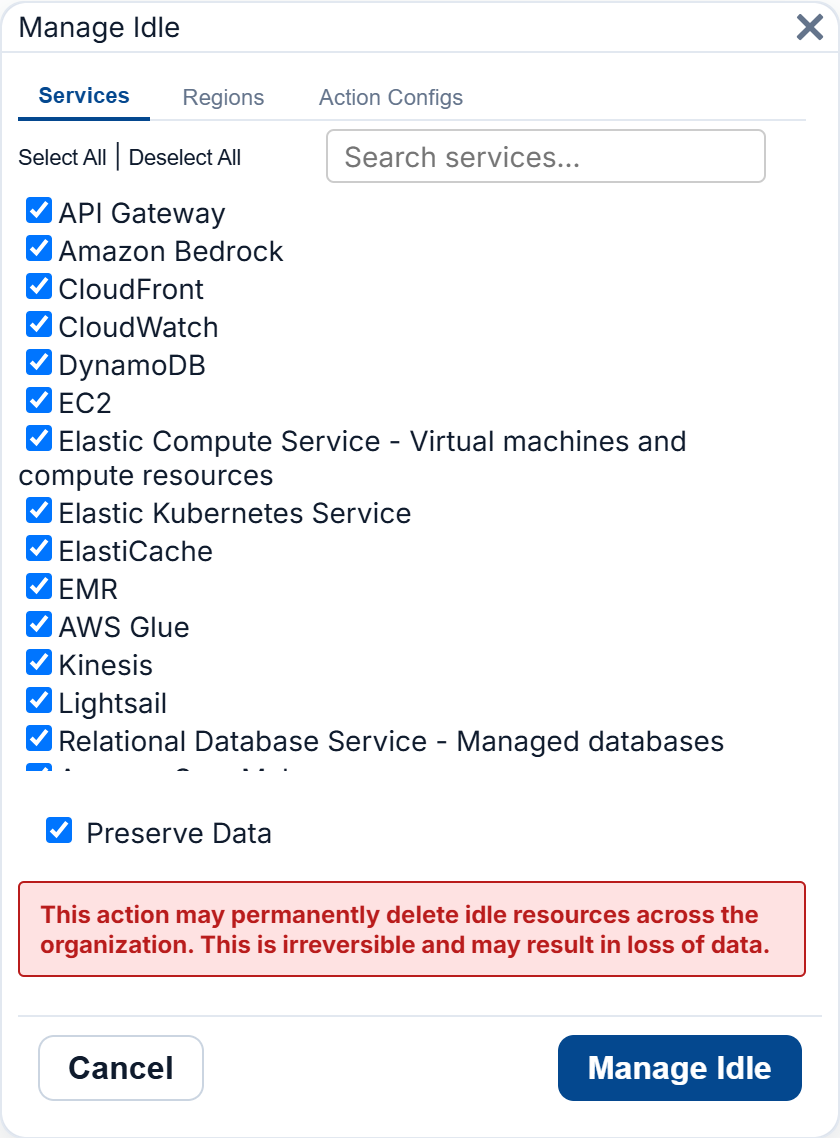
Danger
Manage Idle can delete idle resources across the whole organization, and that cannot be undone. Run Detect Idle first and check what it finds.
Next Steps
- Compliance: check the organization's accounts against policies and standards
- Budgets and Costs: budgets for the organization and its accounts
- Account Access: how the guardrails reach the cloud accounts